

QIDI MAKER APP
For remote viewing and printer access you should install the Maker app and bind your QIDI printer with it.
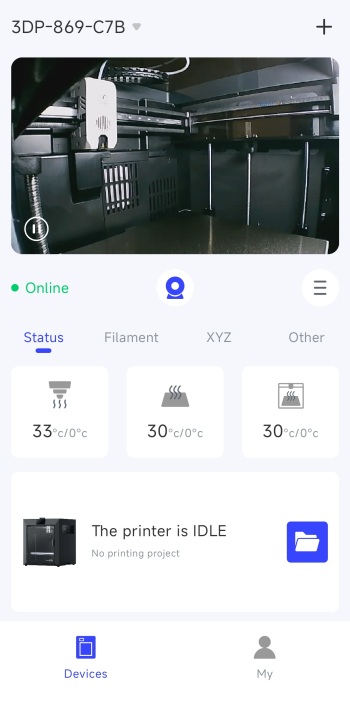
The first screen after you bind the printer will allow you to access the timelapse camera feed (again default resolution is 640x480p), temperatures and current state (idle, printing).
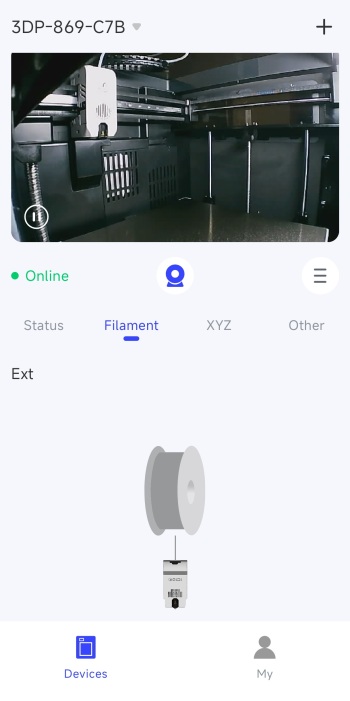
Second screen indicates the current filament input (spool holder or box).
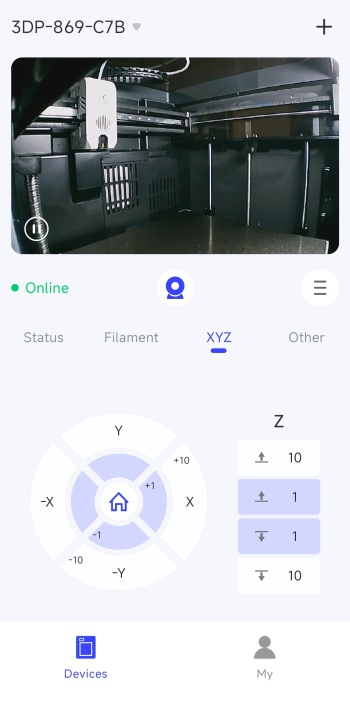
Third screen allows you to move the print nozzle and the bed itself.
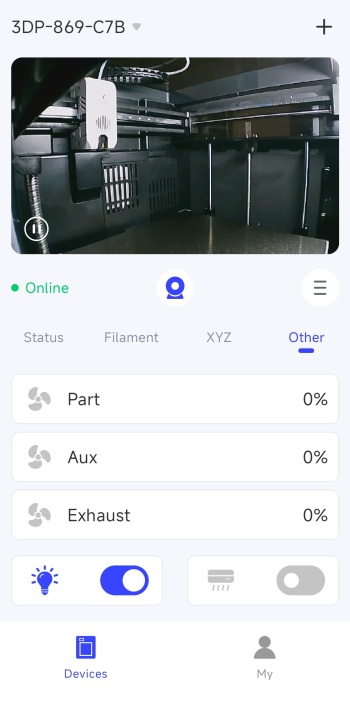
Final screen indicates current fan speeds, LED light and air circulation system.
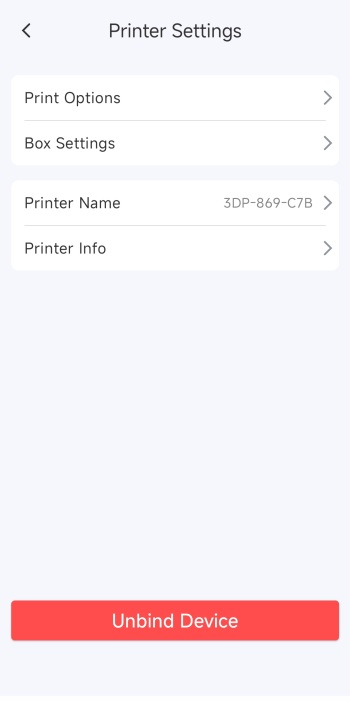
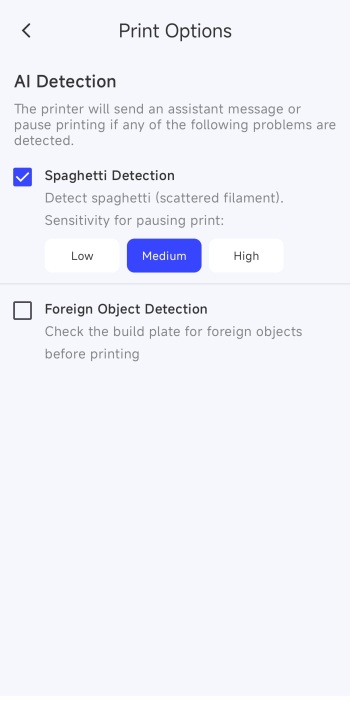
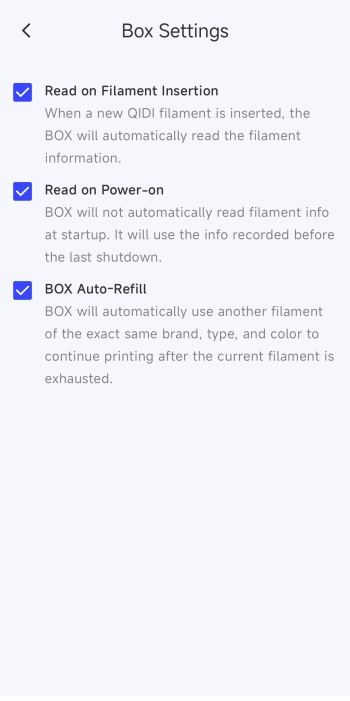
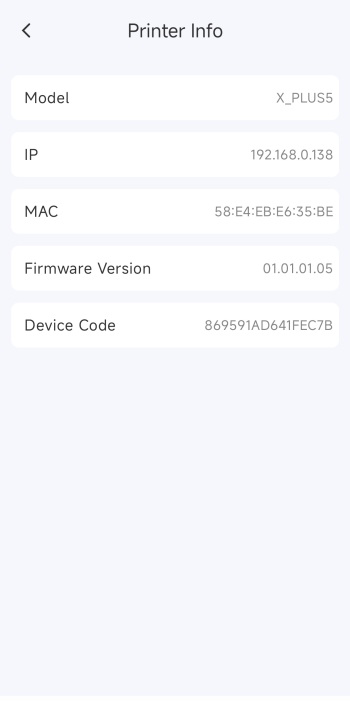
Moving to the settings area from here you can adjust the AI detection options, box options, and check printer info (the IP is what you should all keep from this screen).
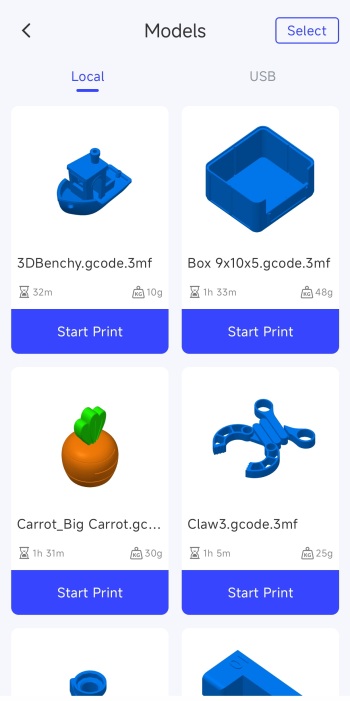
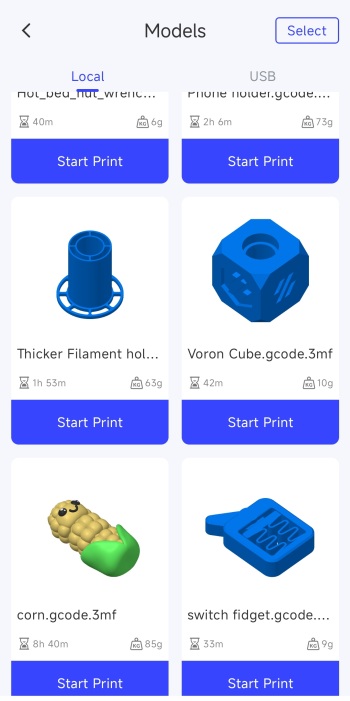
Worth pointing out is that you can start printing of the stored 3D models from within the app itself.
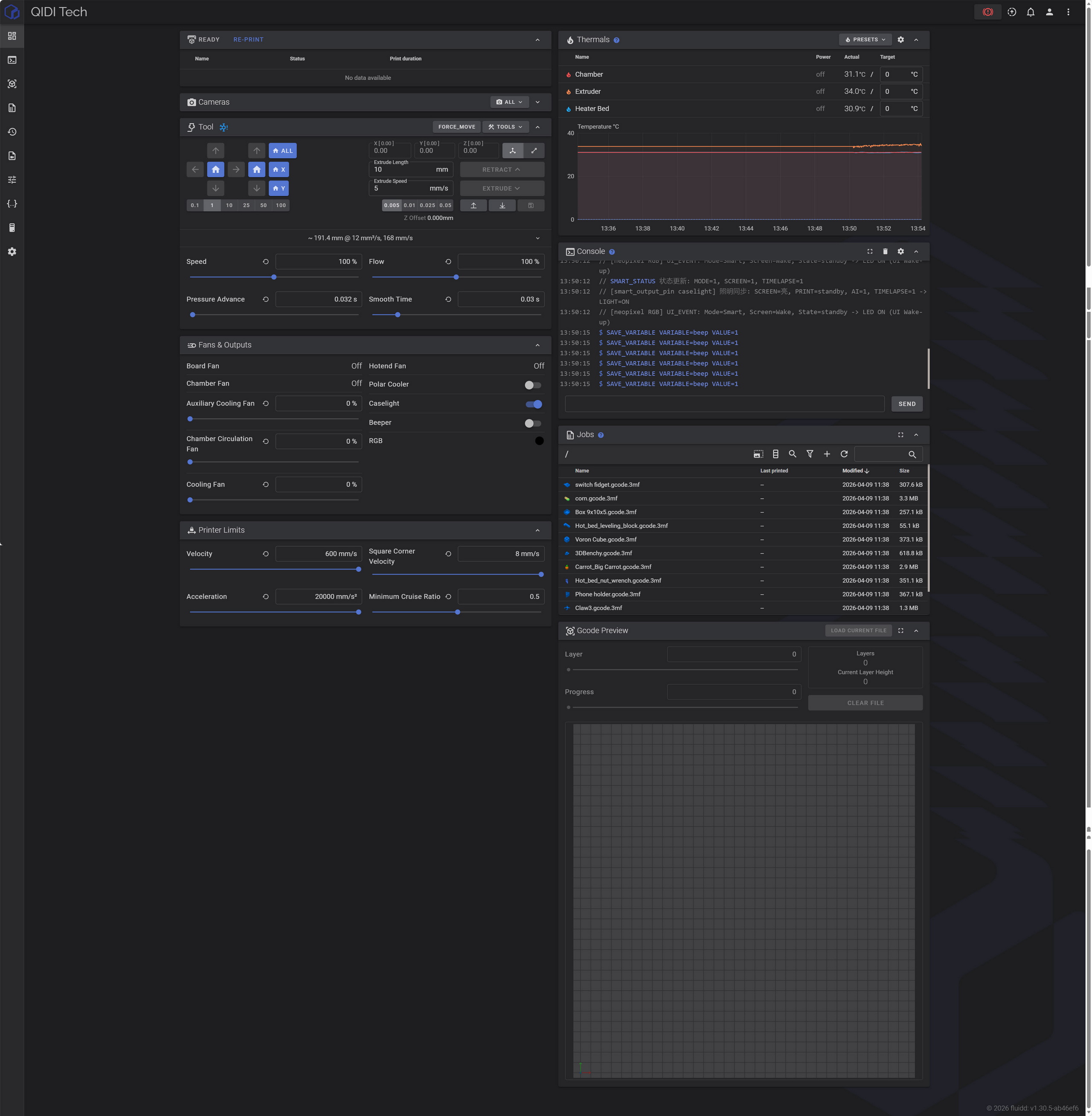
At this point it’s clear that QIDI doesn’t allow the end user to change the timelapse camera resolution easily, neither from the printer touch screen or the app. To do that you need to access the printer from your browser (use the IP from the information screen) as seen above.
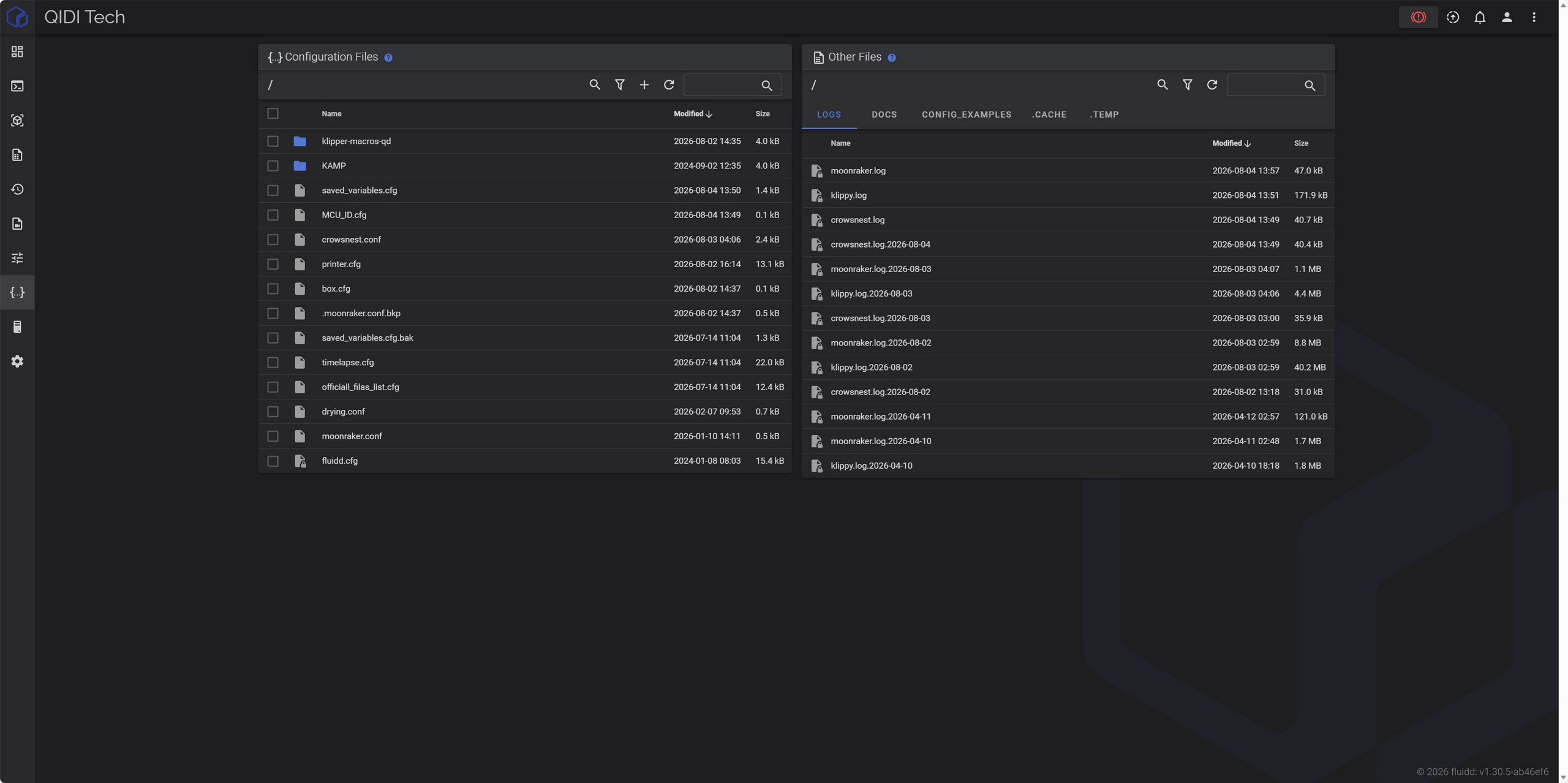
Then you need to move to the configuration files area from the left side menu (from the left side menu you can also access your timelapse recordings).
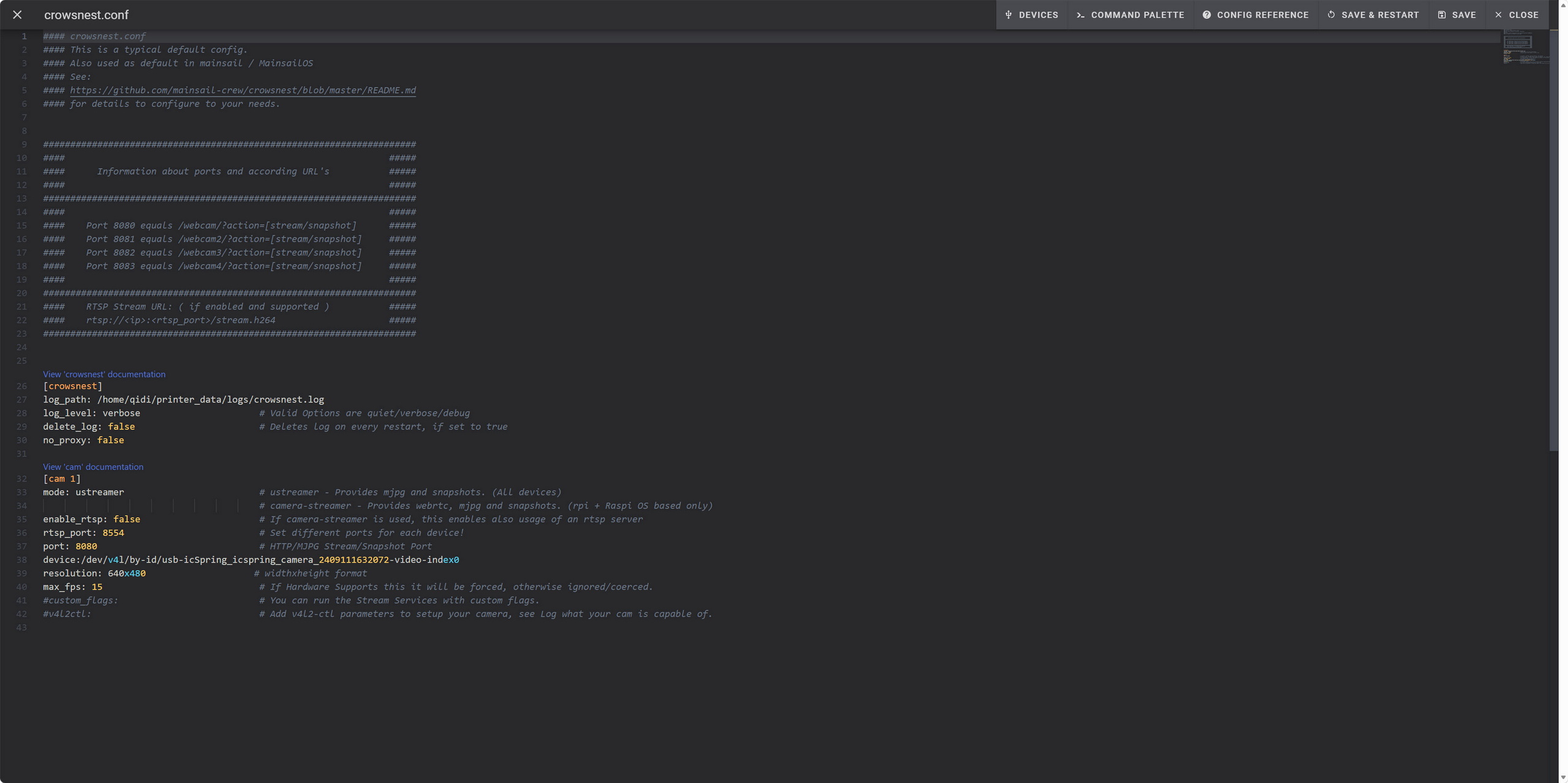
After that just access the crowsnest.conf file, change the timelapse camera resolution (1920x1080p / 1280x720p – you may want to reduce max fps for FullHD if you encounter lag/freezing), save the file and then restart the Klipper.