

IO CENTER
For complete control over the Light Loop IO series, you will need to either install the IO Center software or run the online version directly from the be quiet! website (I strongly recommend the former).

Once run the software detects all compatible devices (left side) and also acts as a system monitor (right side).

Placing the mouse cursor over the picture of the product unveils all available tabs.


From the illumination tab you can pick one of the 6 available effects, group all zones together or adjust each one separately and you can even adjust each ARGB LED individually.

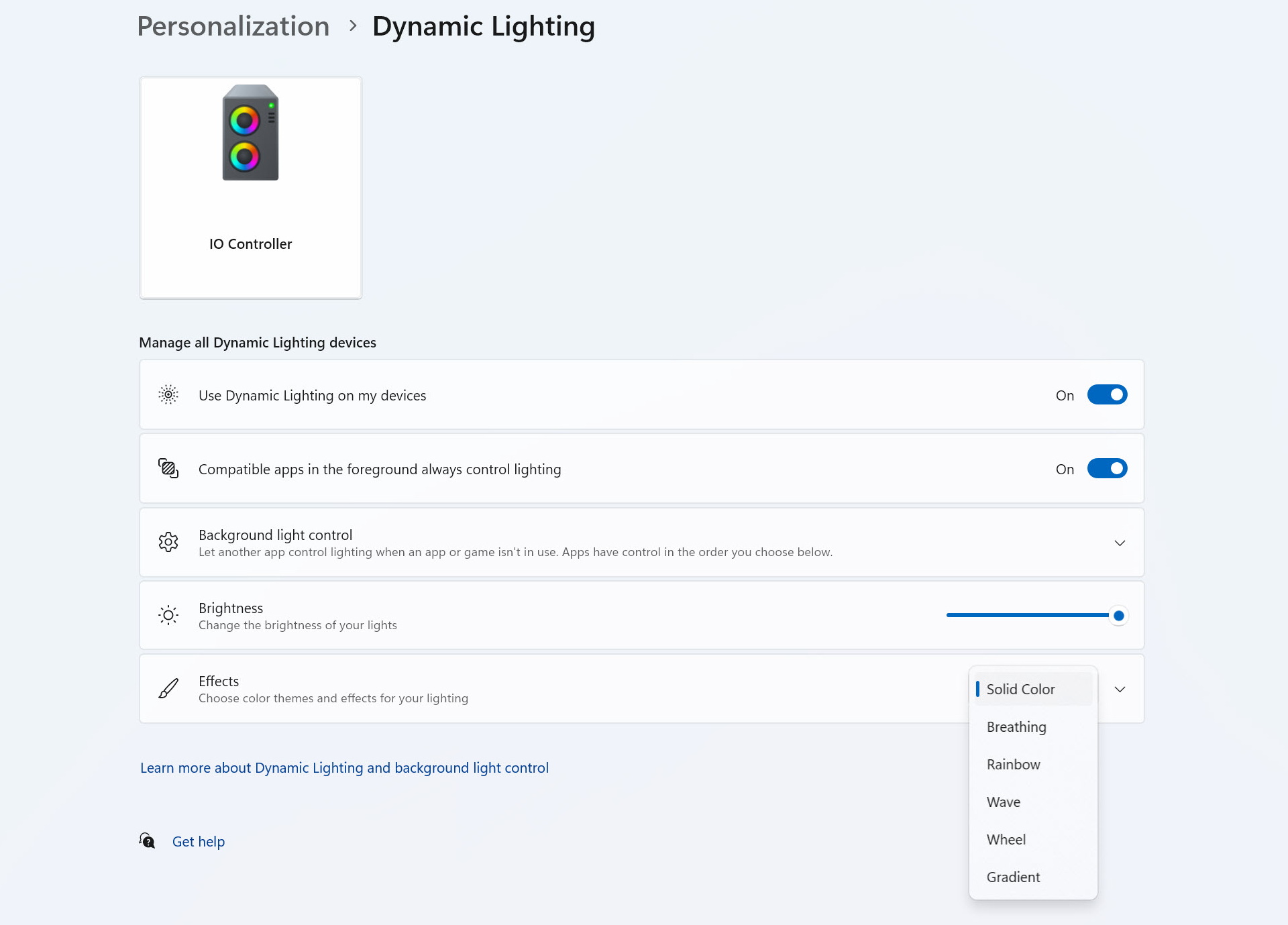
Microsoft dynamic lighting is something I've actually not used to date but that option is also available here.


From the screen tab you can choose a color, image, video/gif or dynamic ARGB effect and of course you can also upload your very own video/gif/picture (size limits apply).

The cooling setup tab is a bit confusing so if you don't want to get into fan curves, I suggest allowing your motherboard to do all the work (PWM connection).


If you want to get into it yourself however you have 3 available options, the general tab from where you can choose cooling modes (quiet/performance), the PID tab from where the AIO works based on your desired temperature and the cooling studio in which you also get the full speed option.

From the settings tab you can check for new firmware updates, calibrate the display (if needed), rotate the display and reset the entire device to its factory state.