


MSI GAMING INTELLIGENCE
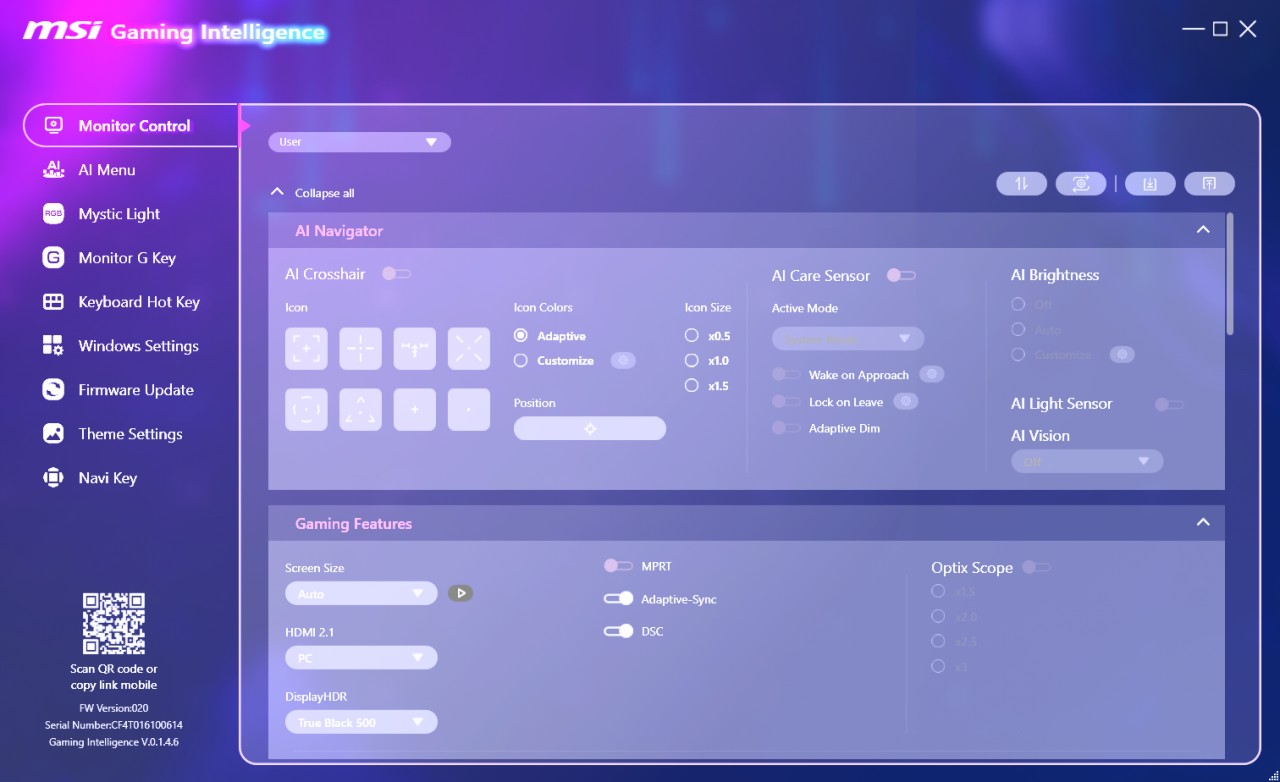
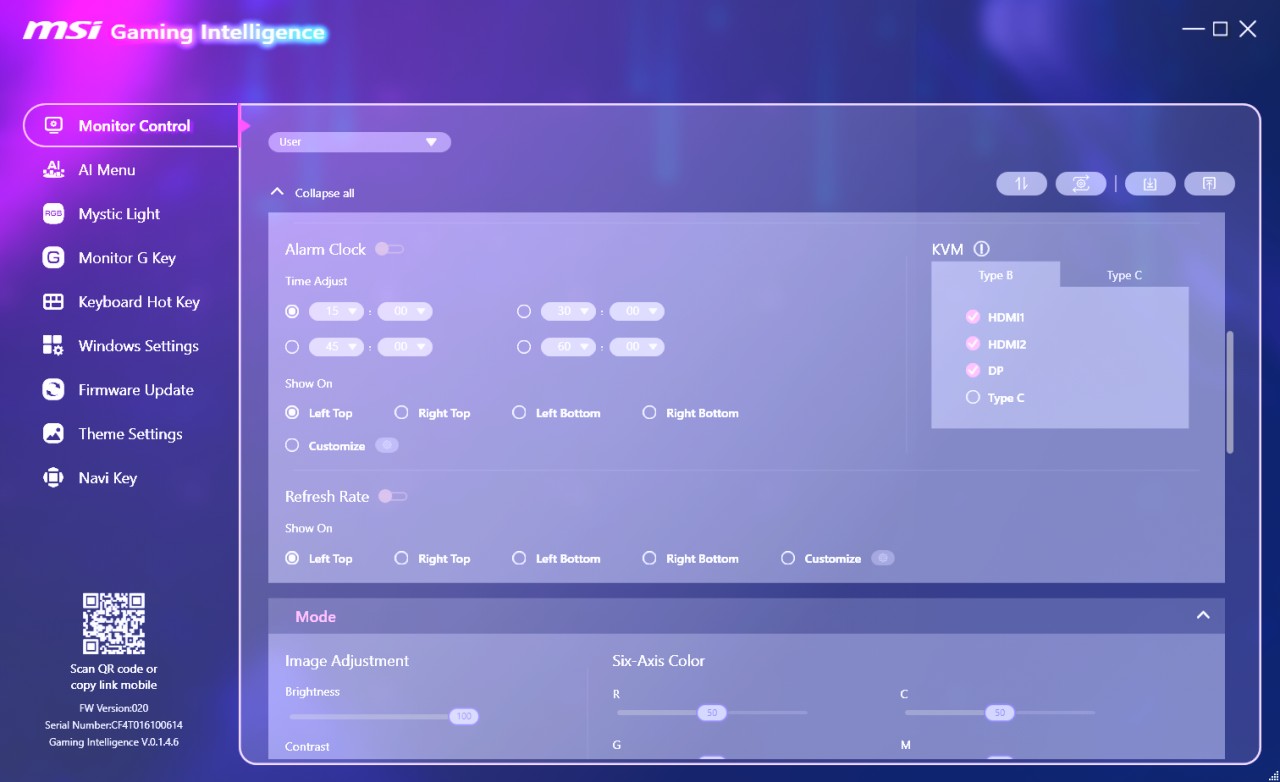
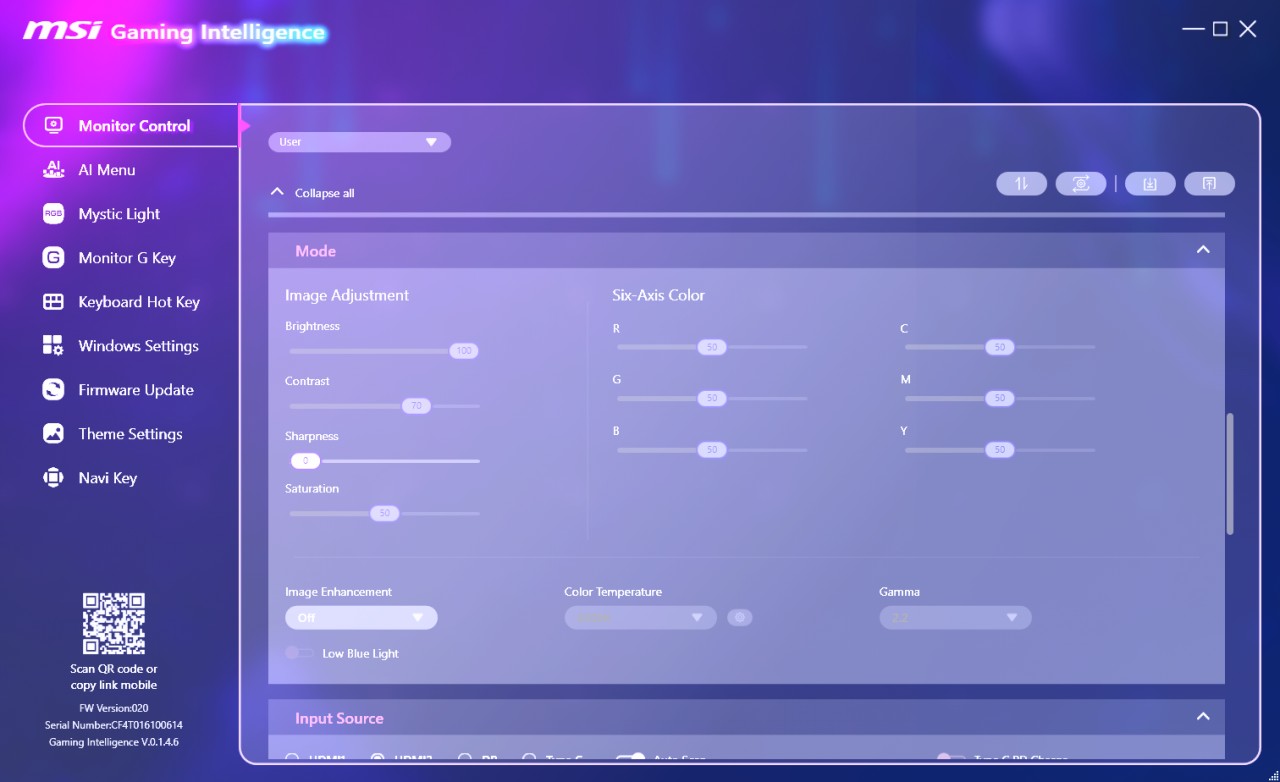
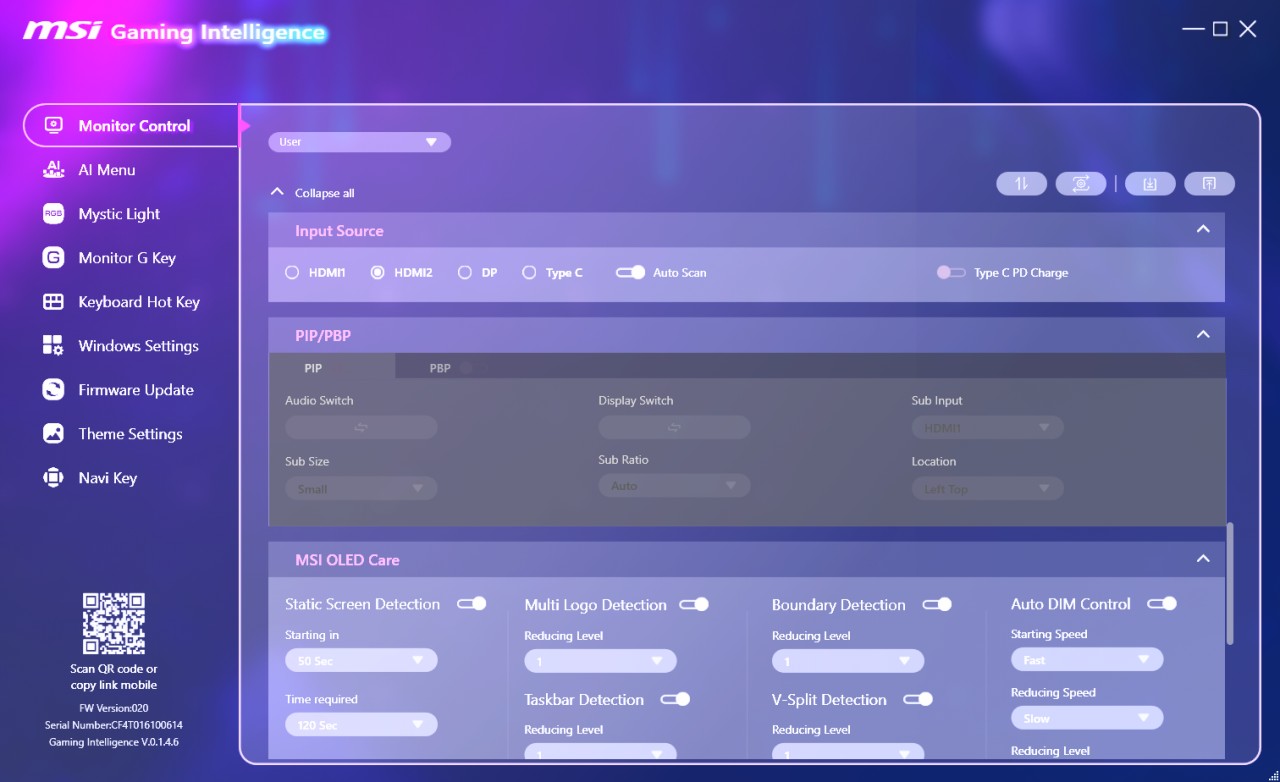
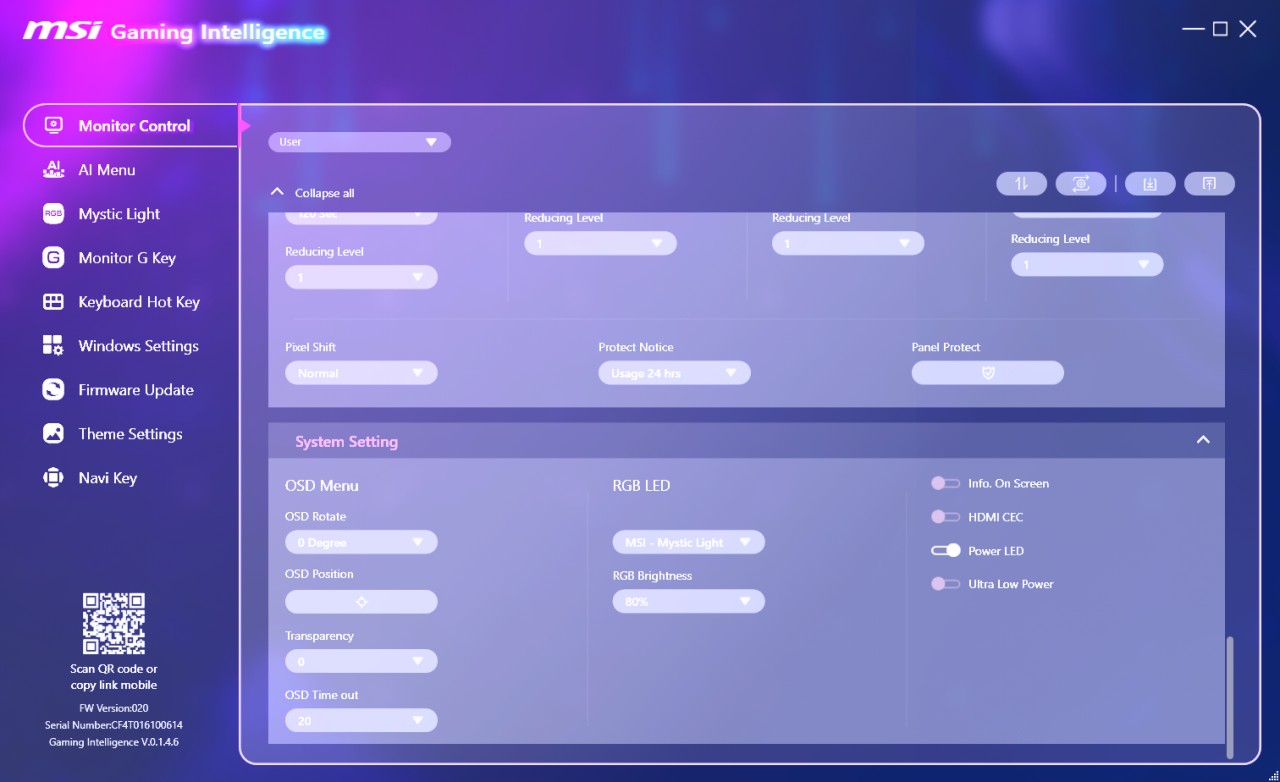
The MSI Gaming Intelligence software offers everything the OSD menus do and more. From the full Monitor Control section, the user can adjust all core display and system behaviors of the monitor. This includes setting an on‑screen alarm timer and choosing its position, enabling a refresh‑rate overlay, switching between picture modes, and fine‑tuning image parameters such as brightness, contrast, sharpness, saturation, and six‑axis color. The user can also configure KVM input routing, select the active video input, and manage PIP/PBP layouts including sub‑window size, ratio, audio source, and location. Additional system controls include pixel‑shift and panel‑protection tools, OSD rotation and positioning, transparency, timeout, RGB LED brightness, and toggles for HDMI‑CEC, power LED, ultra‑low‑power mode, and on‑screen information. The OLED Care panel provides burn‑in protection features like static‑screen detection, logo reduction, boundary detection, taskbar dimming, V‑split detection, and auto‑dim behavior.
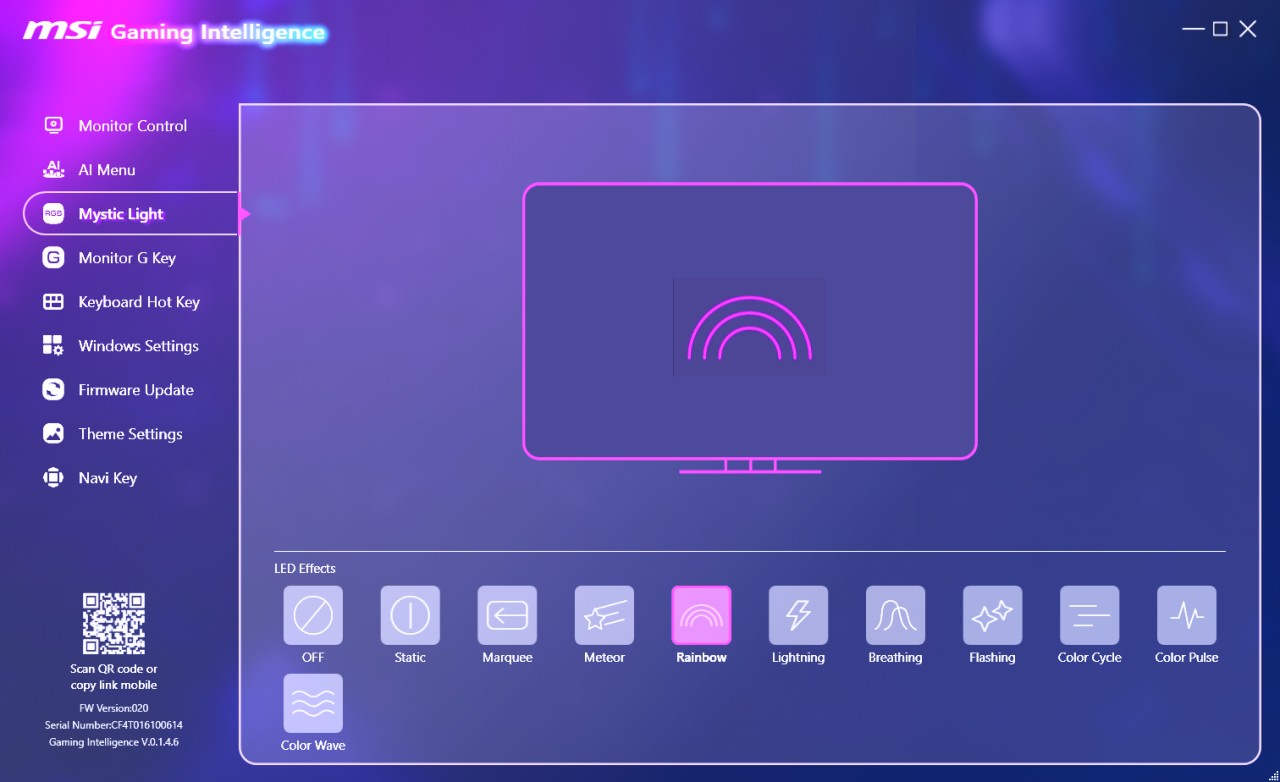
From this tab, the user can control the monitor’s RGB lighting effects. They can choose between static, breathing, rainbow, meteor, color‑cycle, flashing, and other animations, or disable lighting entirely.


One thing I feel I need to point out is that to change effects for the rear RGB LED bar I had to choose them from the app and then remove the USB cable from my computer (probably a bug).
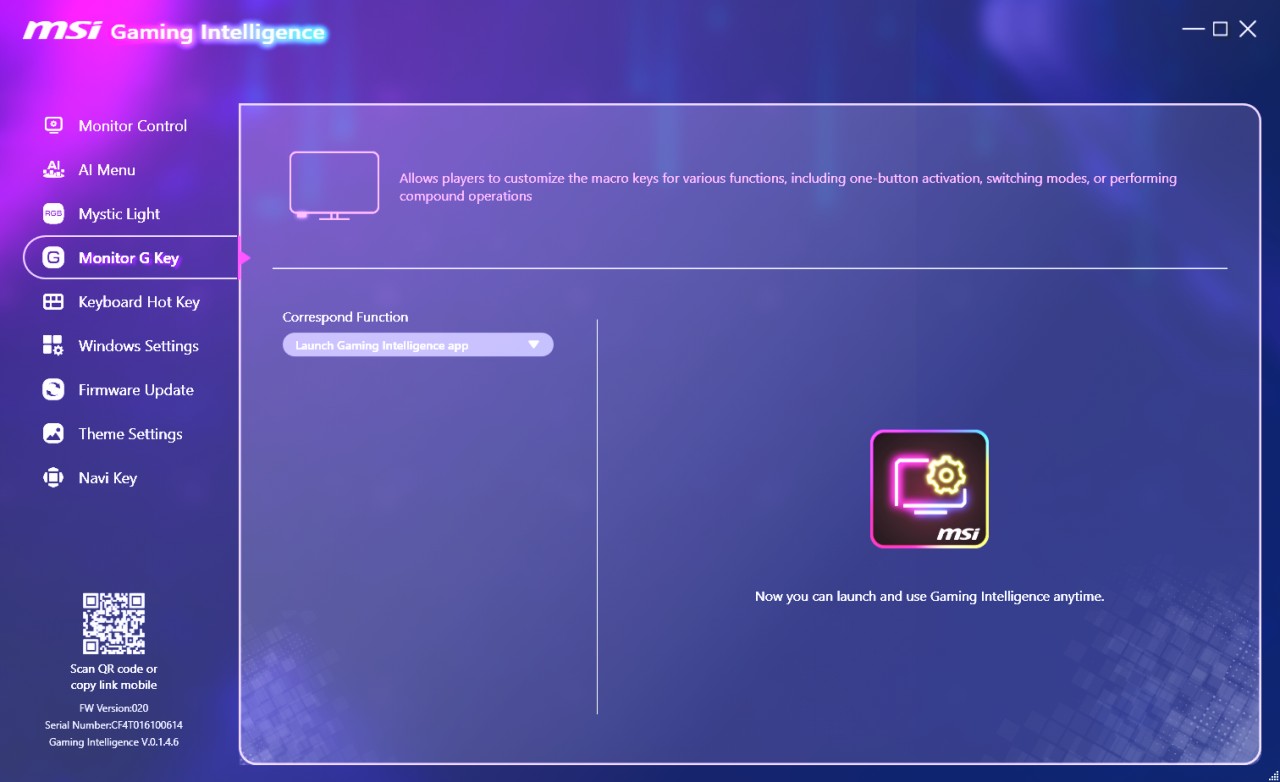
This section lets the user assign a specific action to the monitor’s physical G‑key. They can bind it to launch the Gaming Intelligence app, switch display modes, activate features, or trigger simple macros, giving quick access without opening menus.
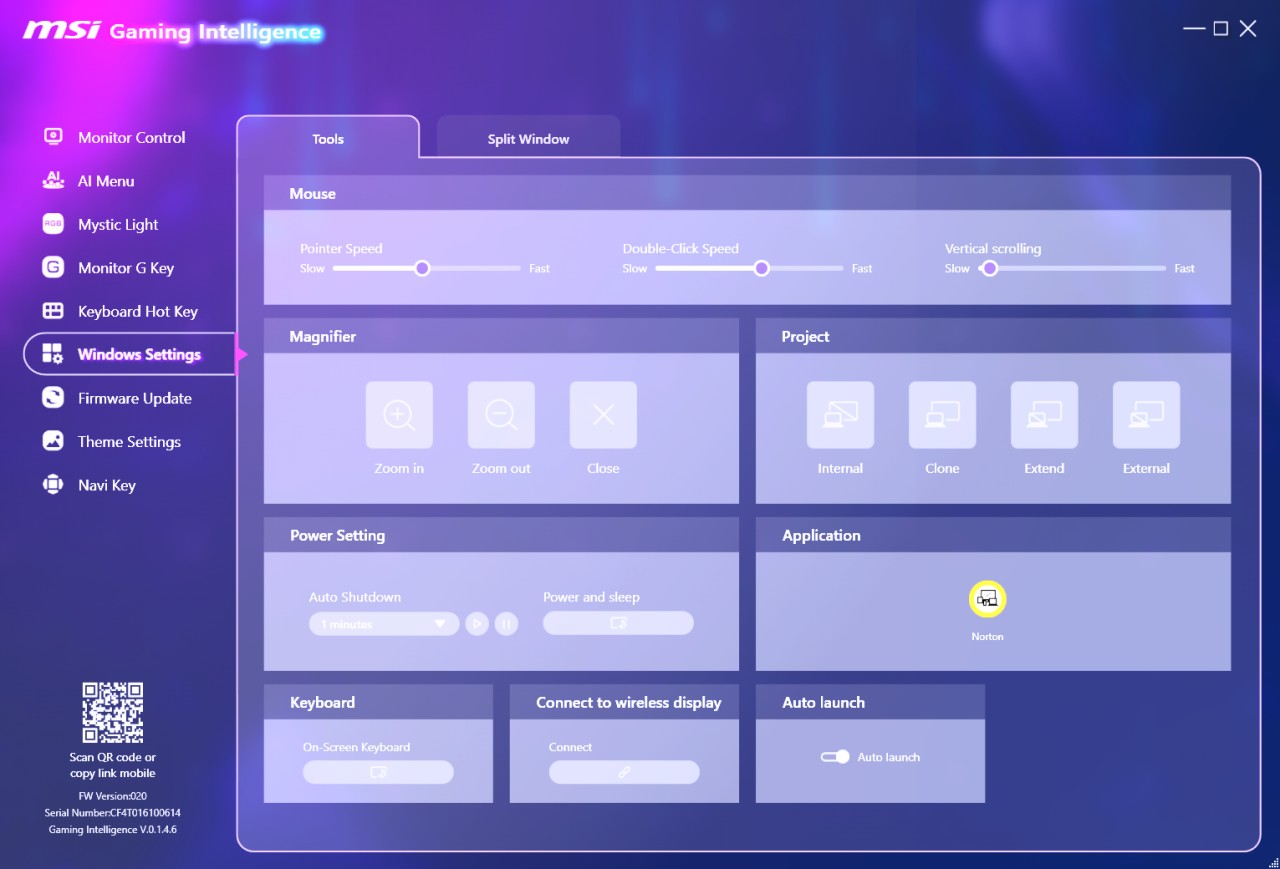
Here the user can access system‑level tools such as mouse speed adjustments, magnifier controls, display projection modes, power and sleep settings, app shortcuts, the on‑screen keyboard, wireless display connection, and an auto‑launch toggle. It also includes window‑splitting layouts for productivity.
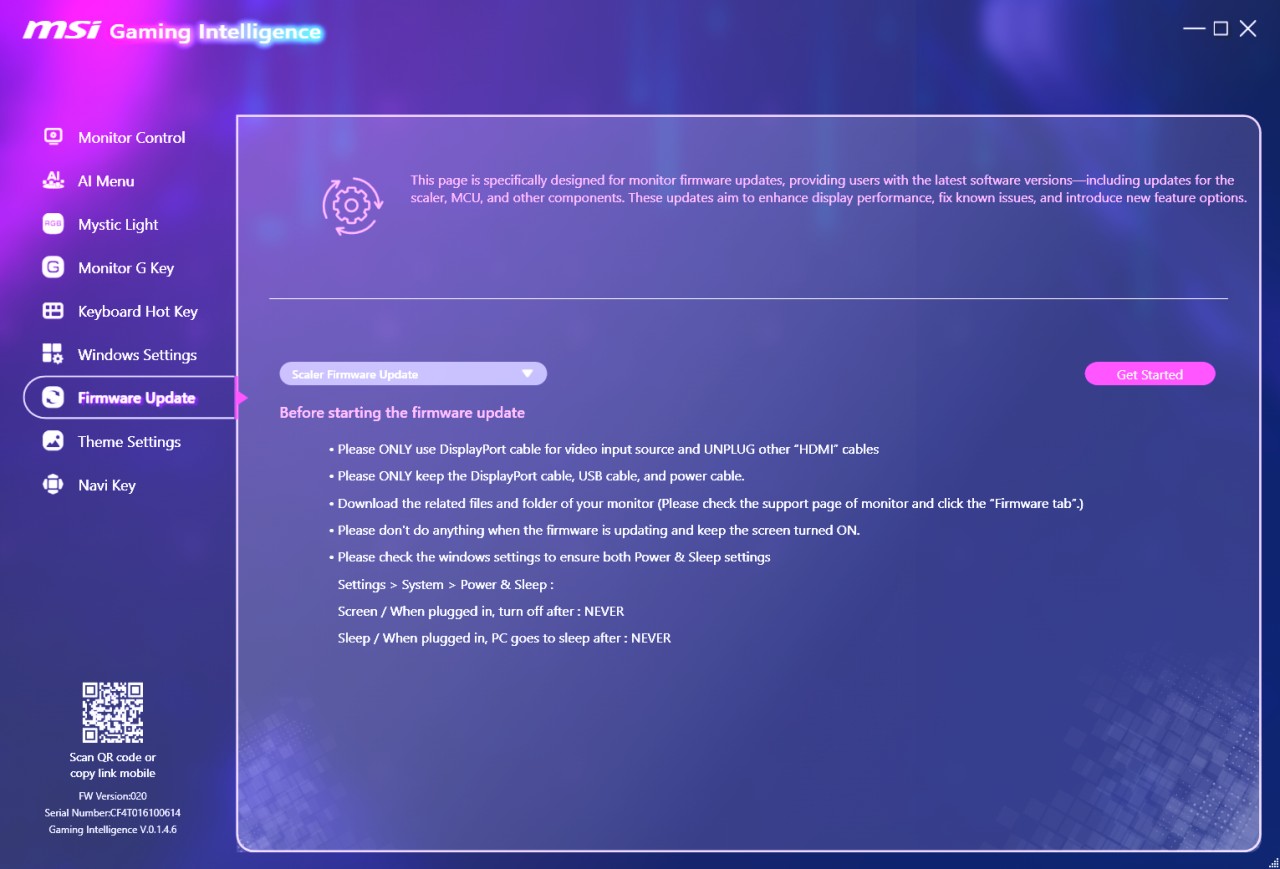
This tab provides the user with the ability to update the monitor’s firmware. It includes instructions for proper cable setup, power‑sleep configuration, and update safety. The firmware update covers scaler, MCU, and other internal components to improve stability and add new features.
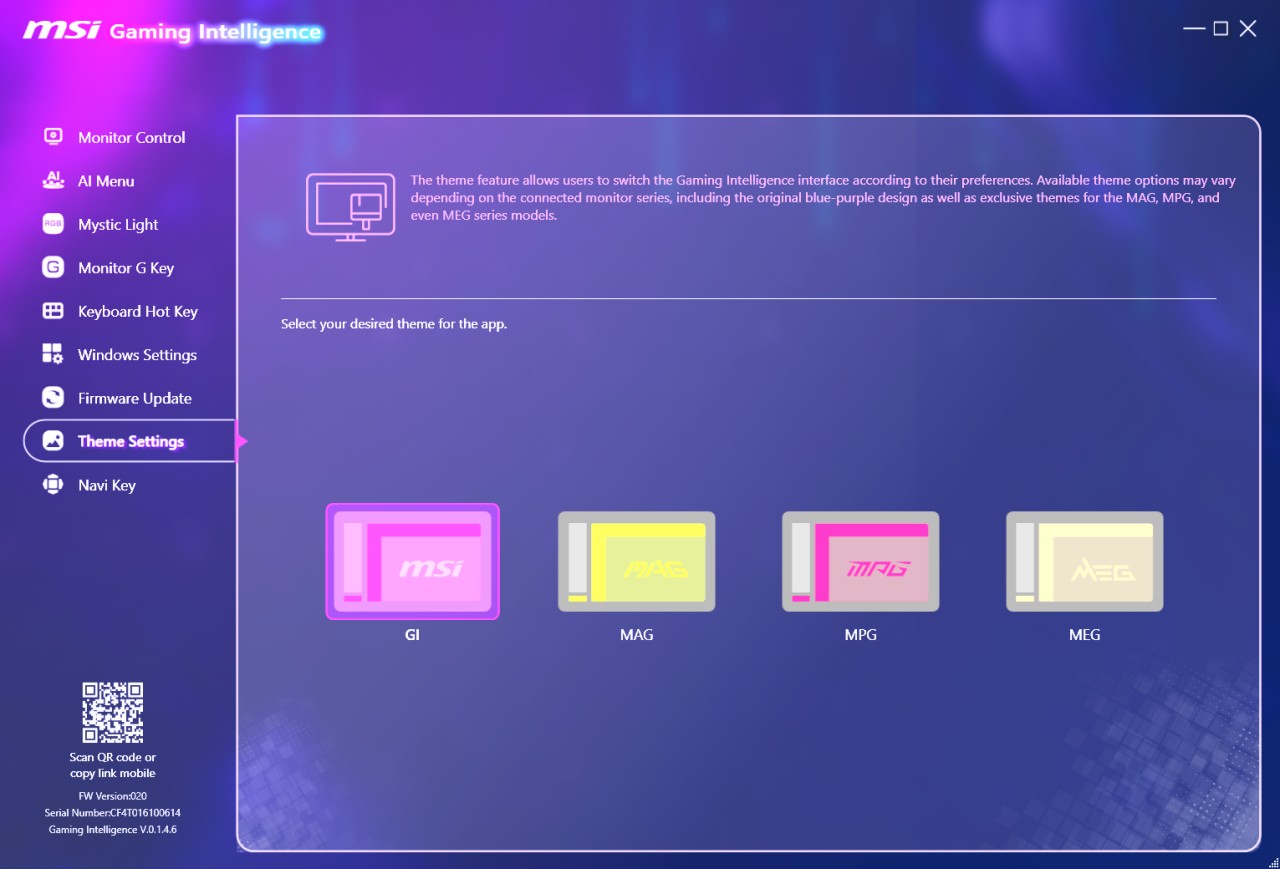
From this tab, the user can change the visual theme of the Gaming Intelligence interface. They can switch between GI, MAG, MPG, and MEG themes depending on preference or monitor series, customizing the software’s appearance.
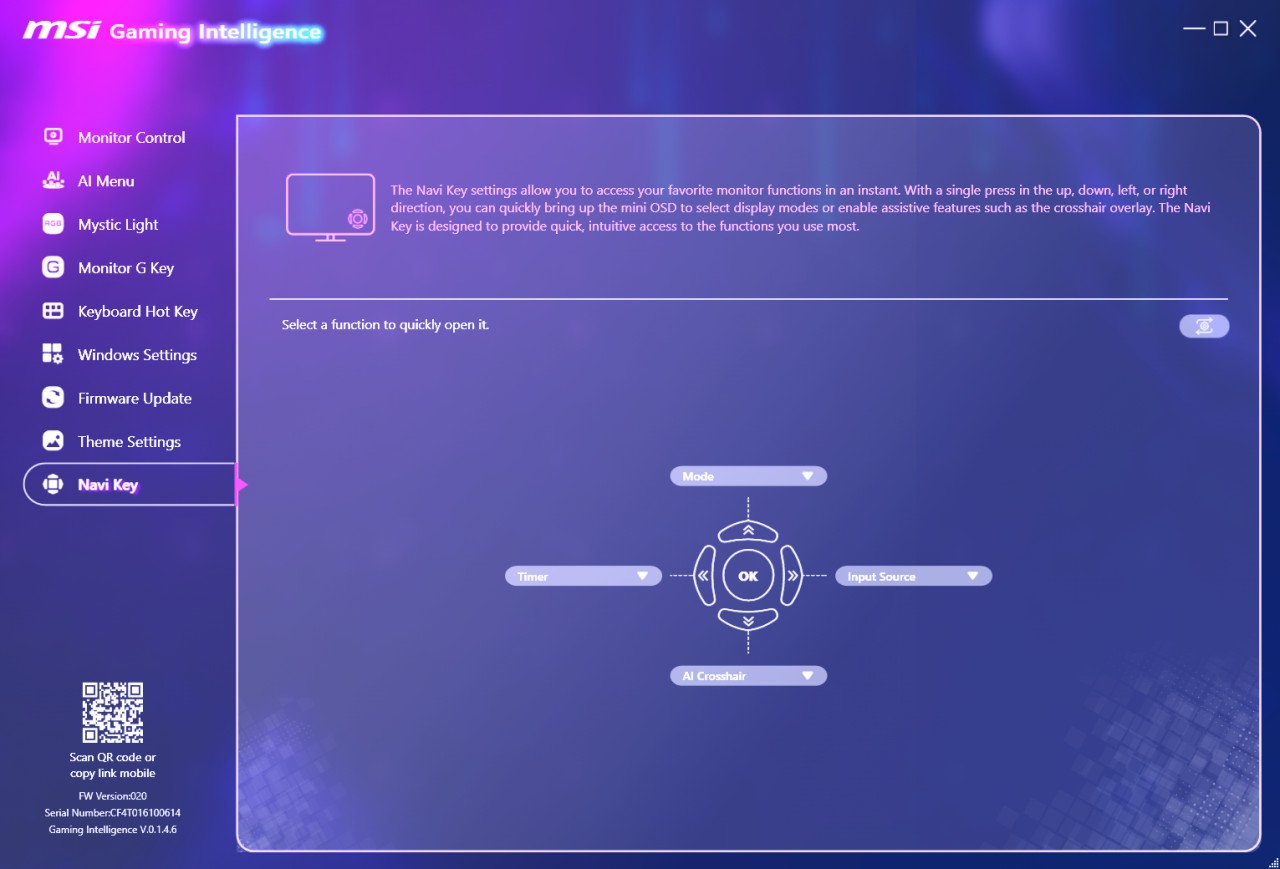
This section allows the user to assign quick‑access functions to the monitor’s joystick directions. Up, down, left, and right can be mapped to features like Mode, Timer, Input Source, or AI Crosshair, enabling fast navigation through the mini‑OSD.