



OSD MENUS
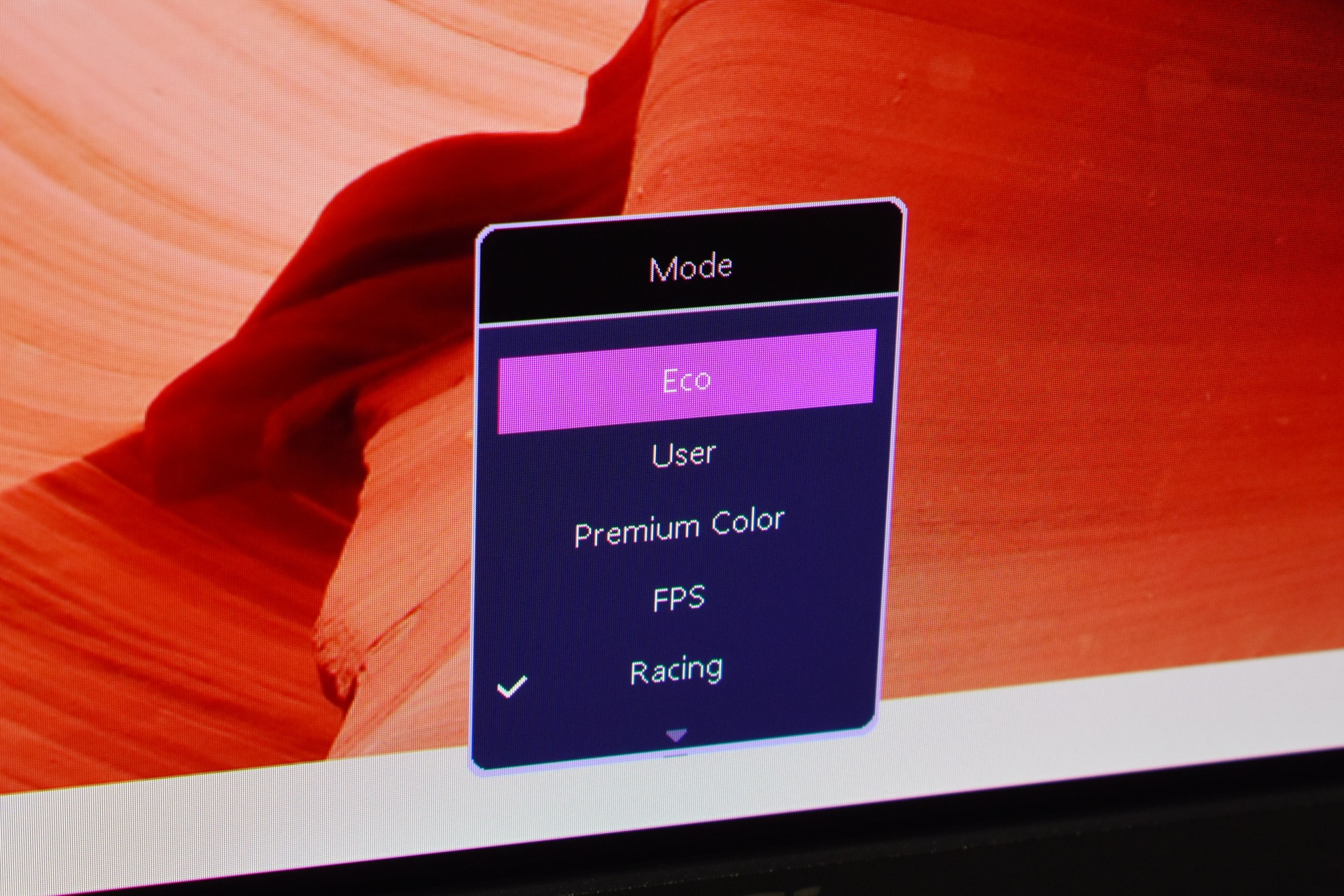
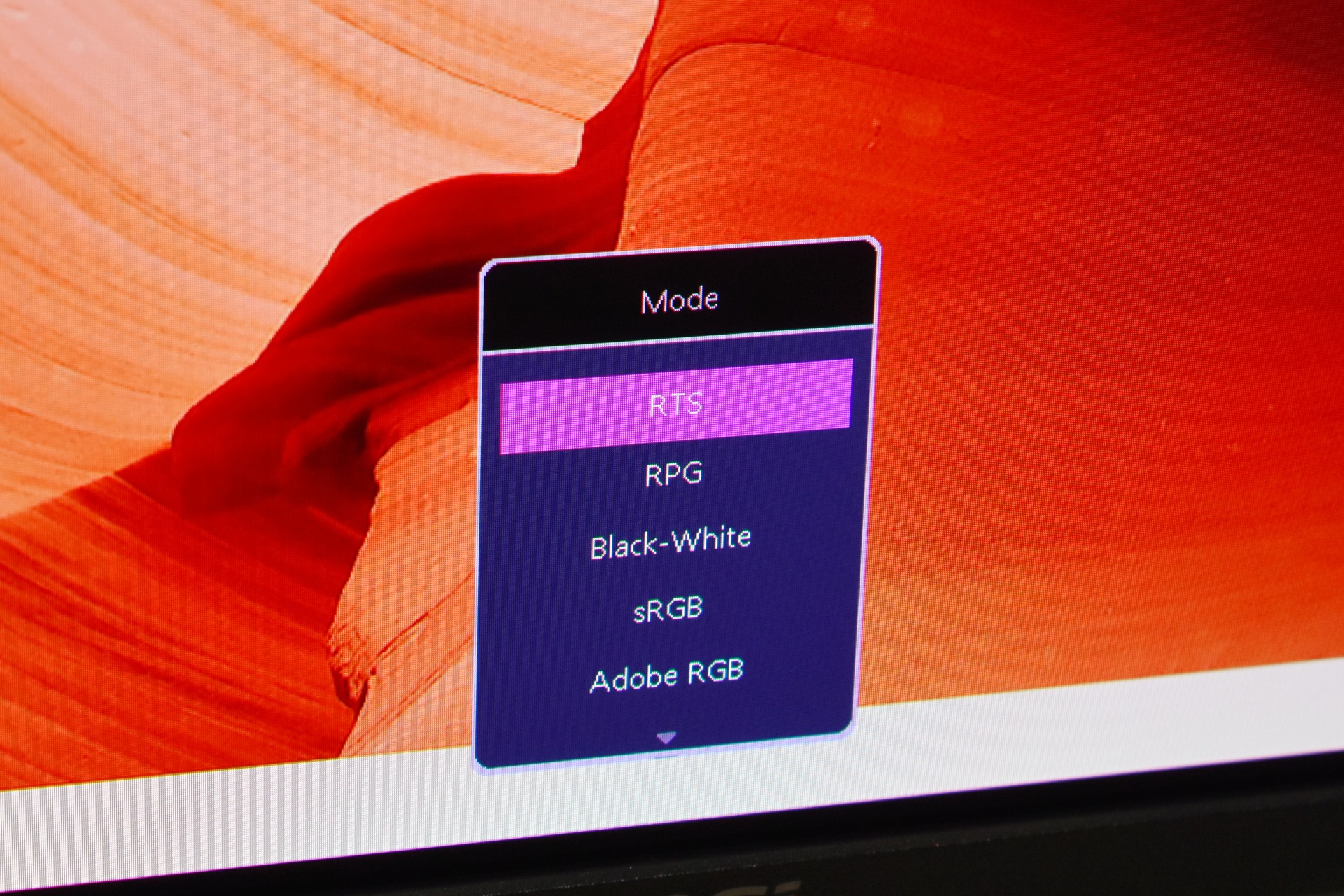
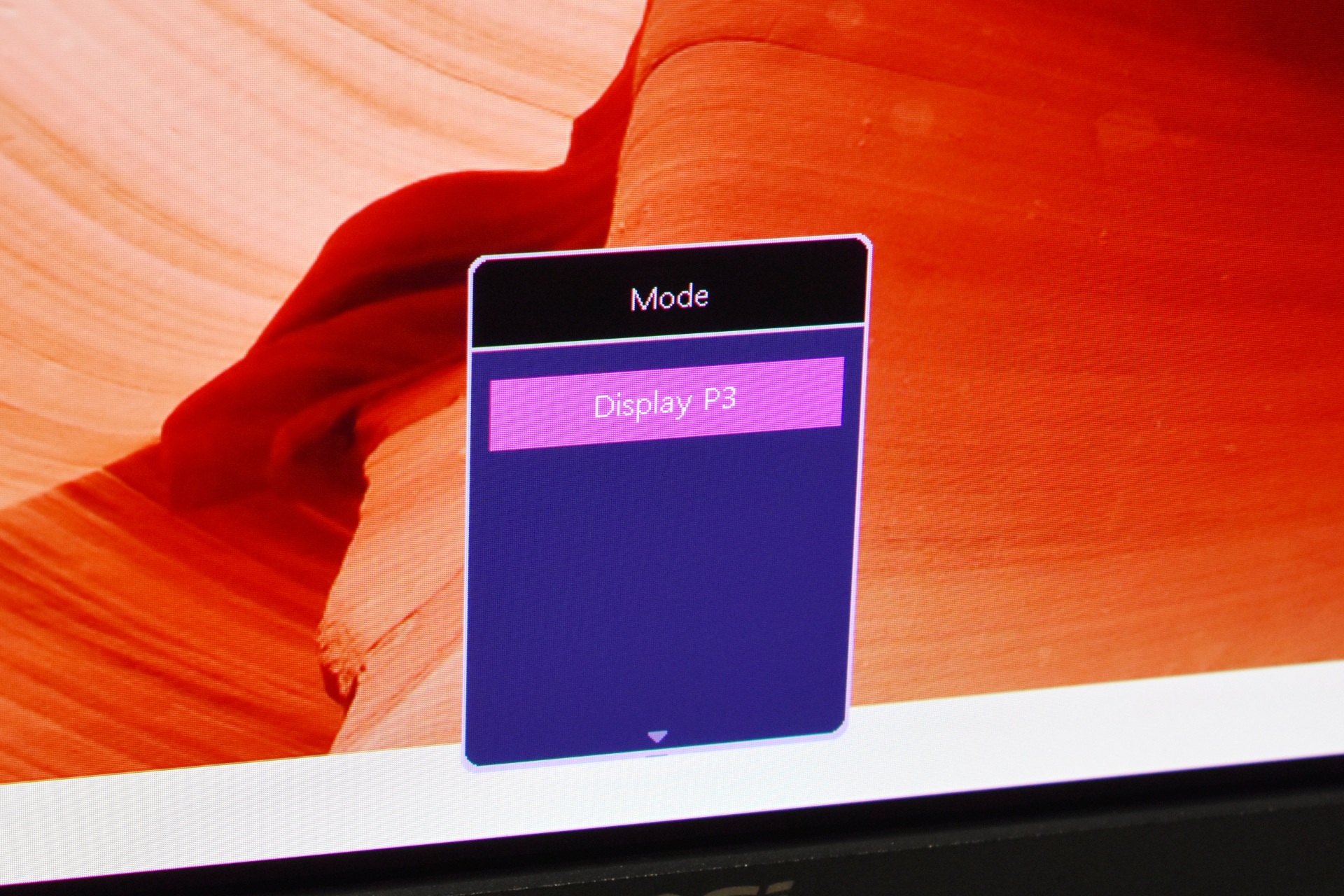
From the Mode menu, the user can switch between different picture presets such as Eco, User, Premium Color, FPS, Racing, RTS, RPG, Black‑White, sRGB, Adobe RGB, and Display P3. Each preset adjusts color tuning, contrast behavior, and gamma to match gaming, productivity, or color‑accurate workflows. The user simply selects the mode that best fits the current task.
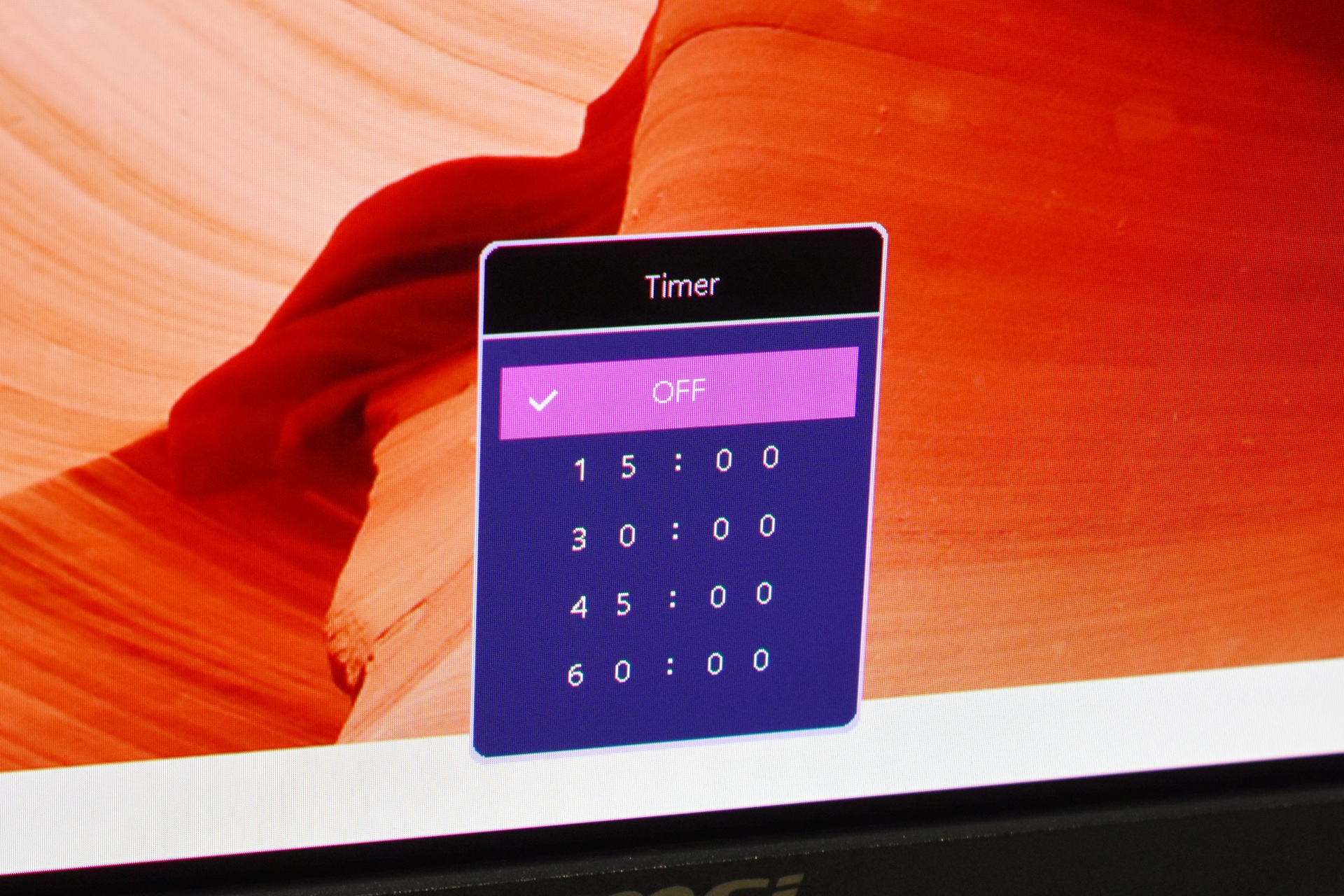
This timer menu allows the user to enable an on‑screen countdown timer. The timer appears on the screen as a visual reminder during gaming sessions or productivity tasks.
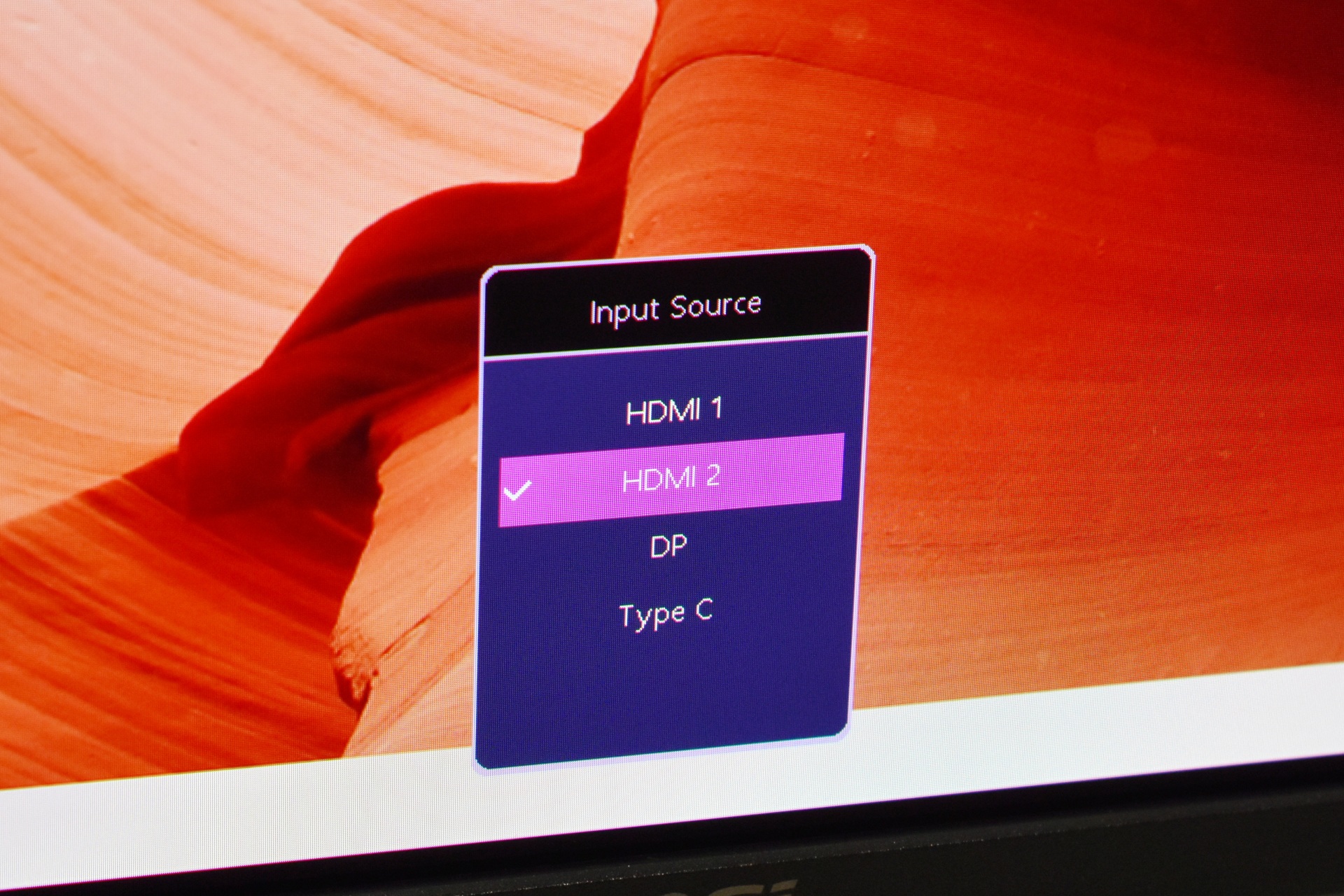
From the input source menu the user can switch the active video input between HDMI 1, HDMI 2, DisplayPort, and Type‑C.
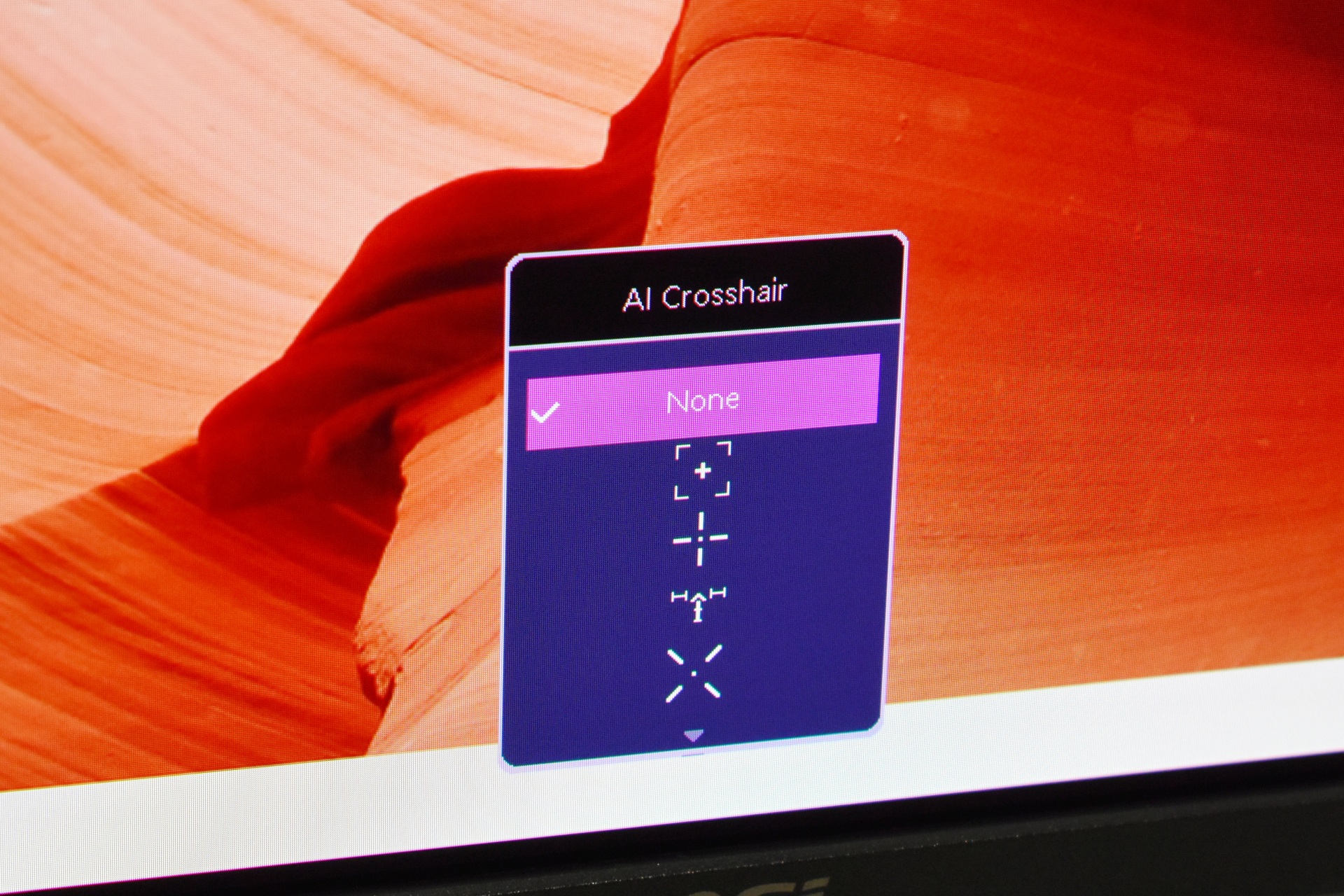
The AI crosshair section lets the user enable an on‑screen crosshair overlay, this is intended for games that lack built‑in crosshairs or for players who want a consistent aiming reference.
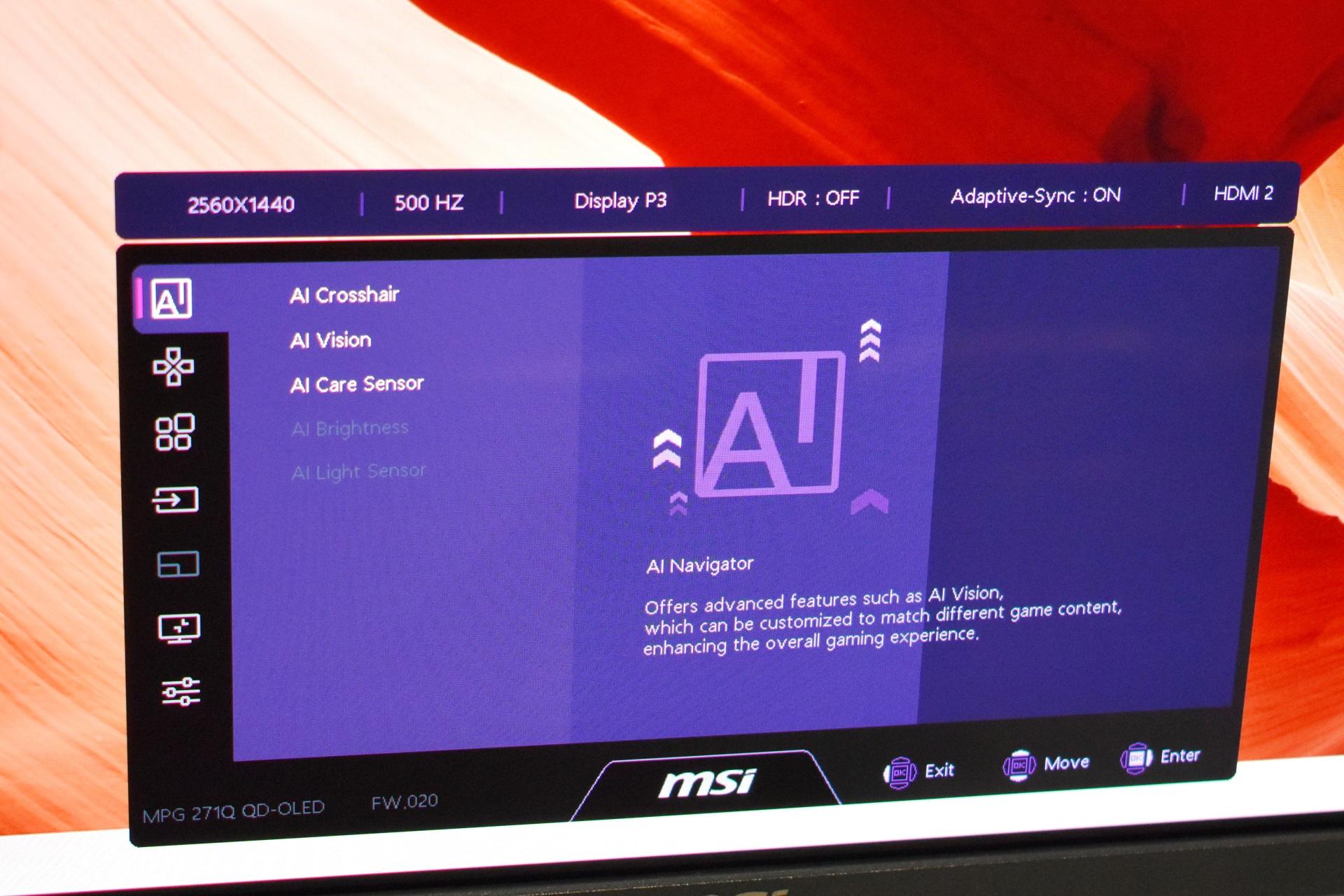
From this menu, the user can access all AI‑assisted features: AI Crosshair, AI Vision, AI Care Sensor, AI Brightness, and AI Light Sensor.
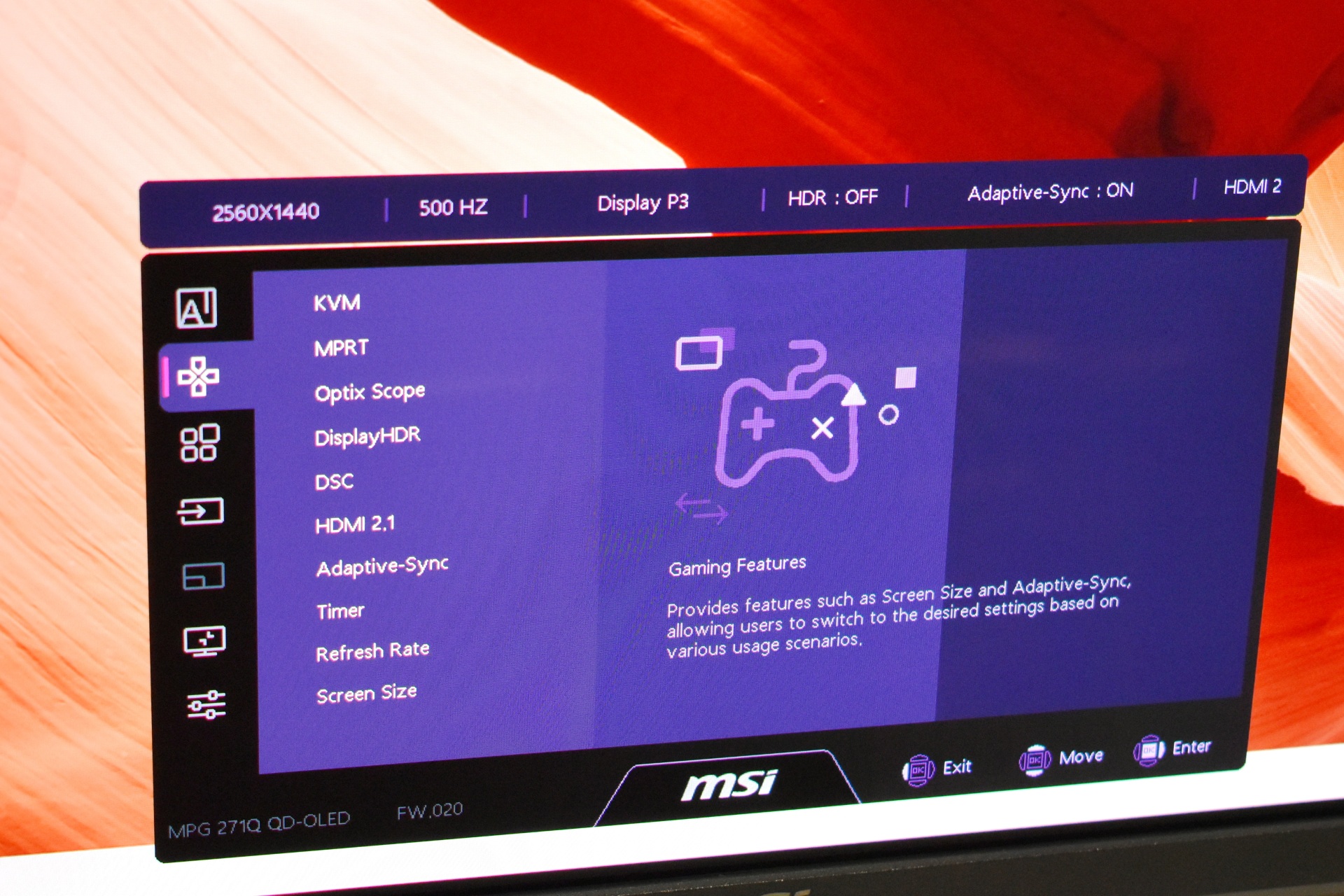
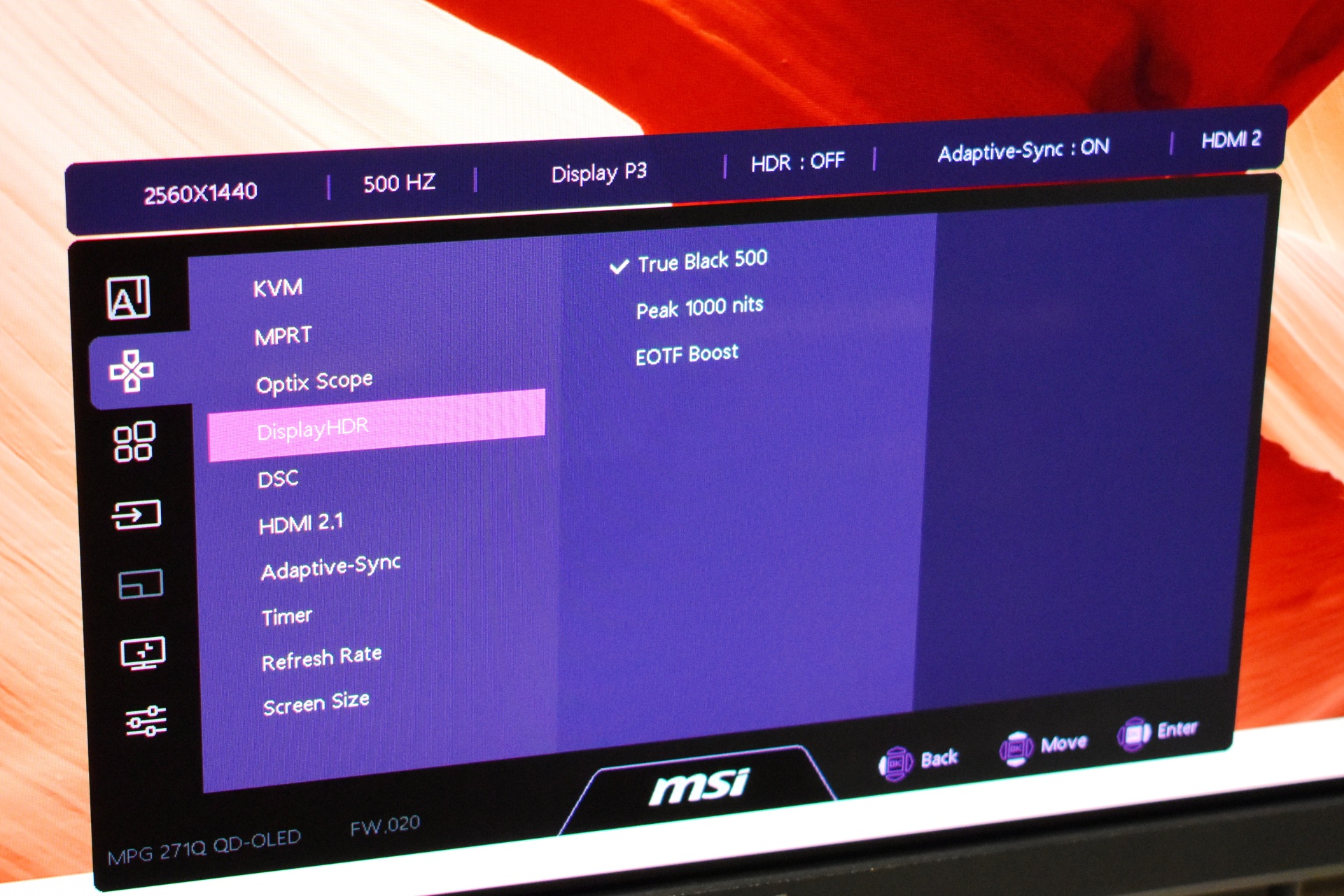
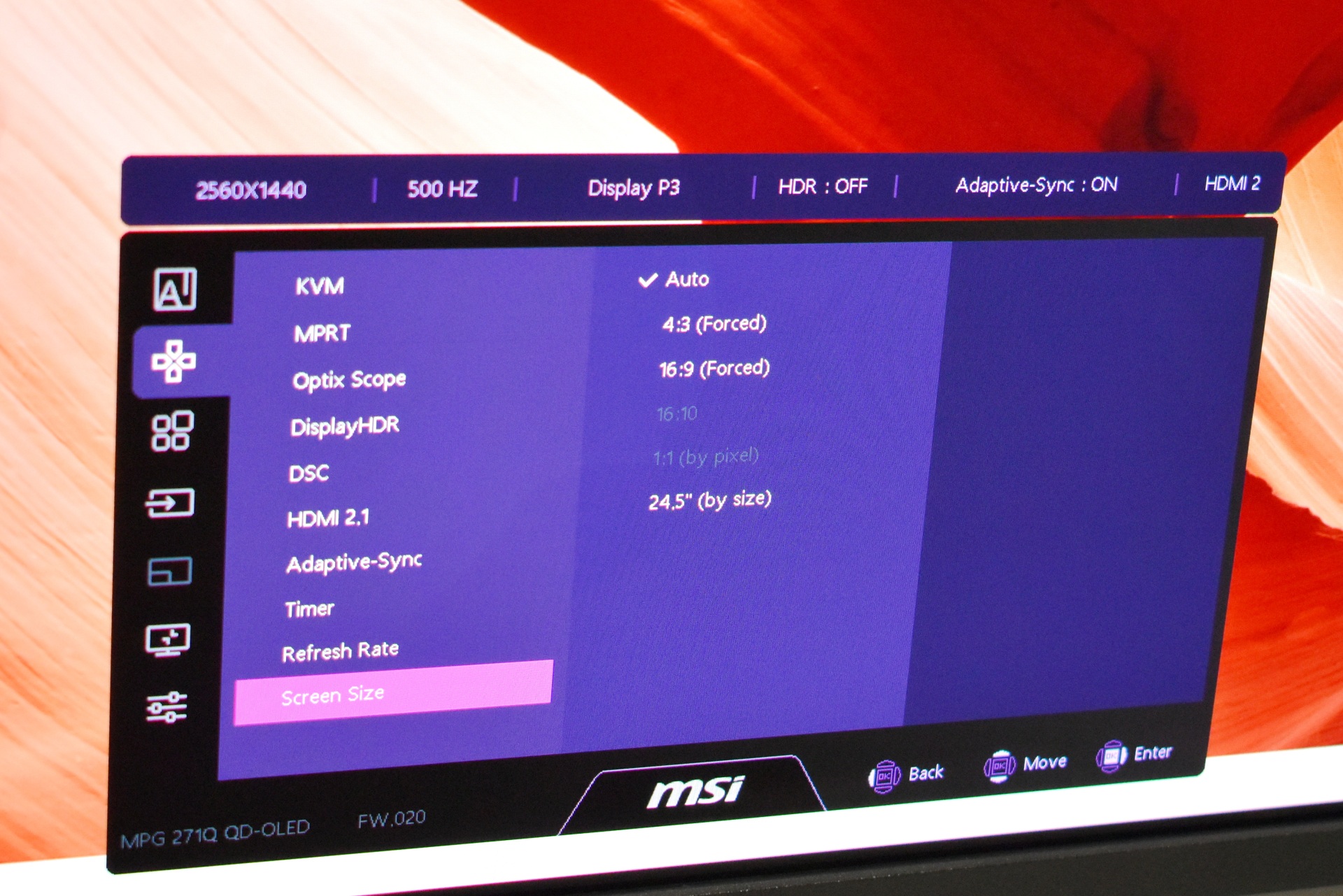
This section provides quick access to gaming‑oriented toggles. The user can enable or adjust KVM, MPRT, Optix Scope zoom levels, DisplayHDR modes, DSC, HDMI 2.1 behavior, Adaptive‑Sync, the on‑screen timer, refresh‑rate display, and screen‑size emulation.
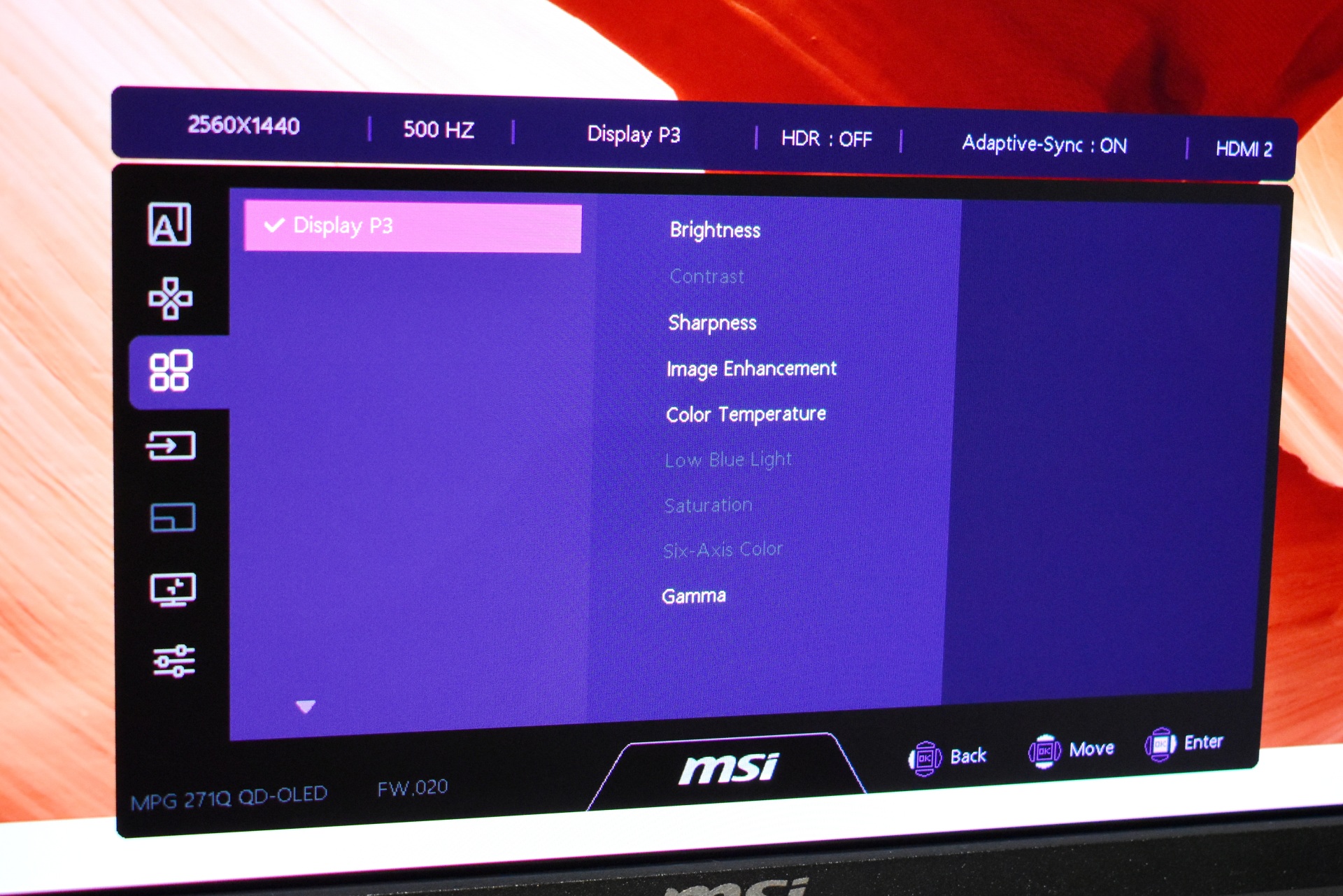
In this section, the user can fine‑tune all image parameters of the selected color mode. Controls include brightness, contrast, sharpness, image enhancement, color temperature, low‑blue‑light mode, saturation, six‑axis color tuning, and gamma.
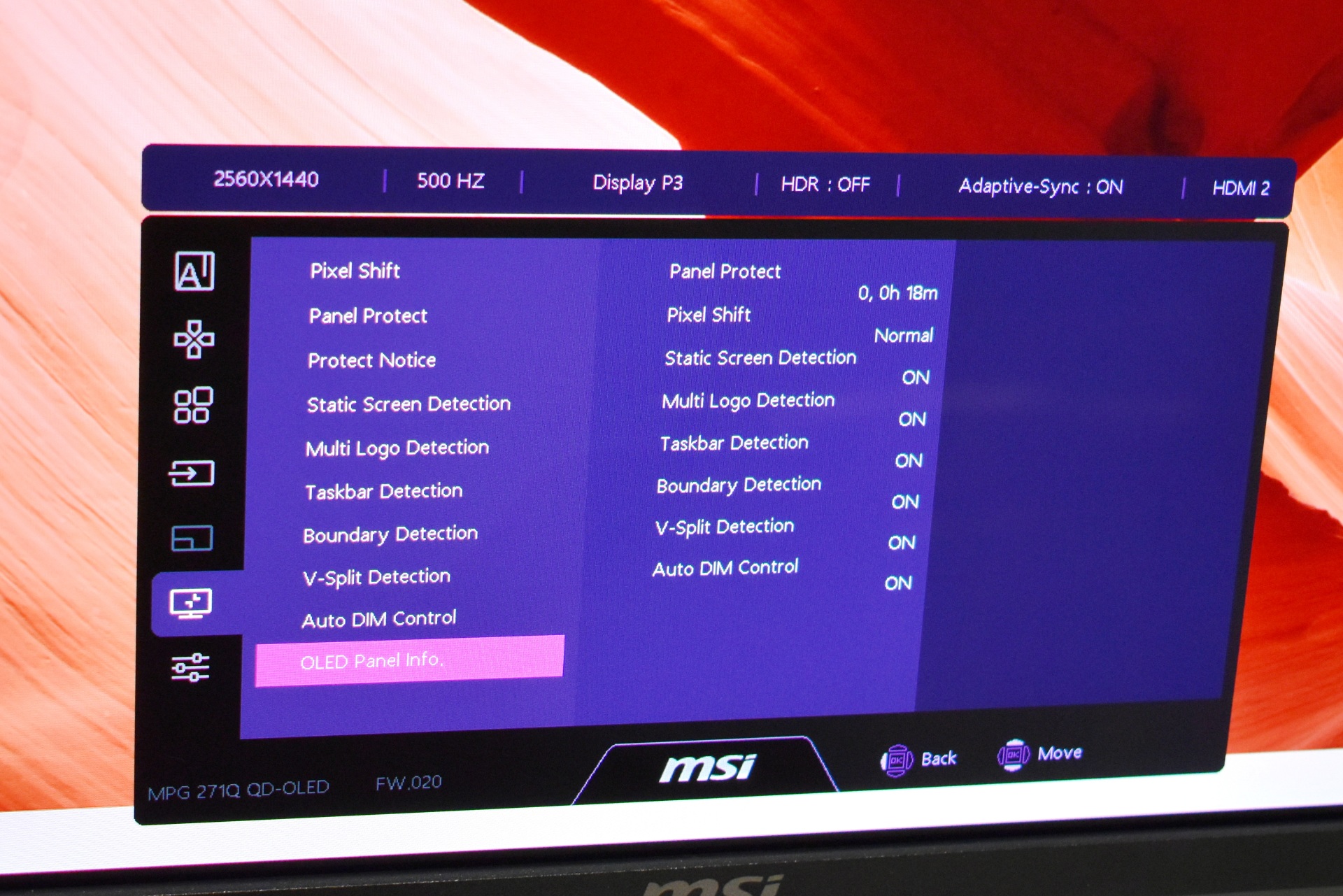
This menu provides all OLED maintenance and burn‑in prevention tools. The user can check panel‑protect runtime, enable pixel shift, and toggle protections such as static‑screen detection, multi‑logo detection, taskbar dimming, boundary detection, V‑split detection, and auto‑dim control. It also displays OLED panel information.
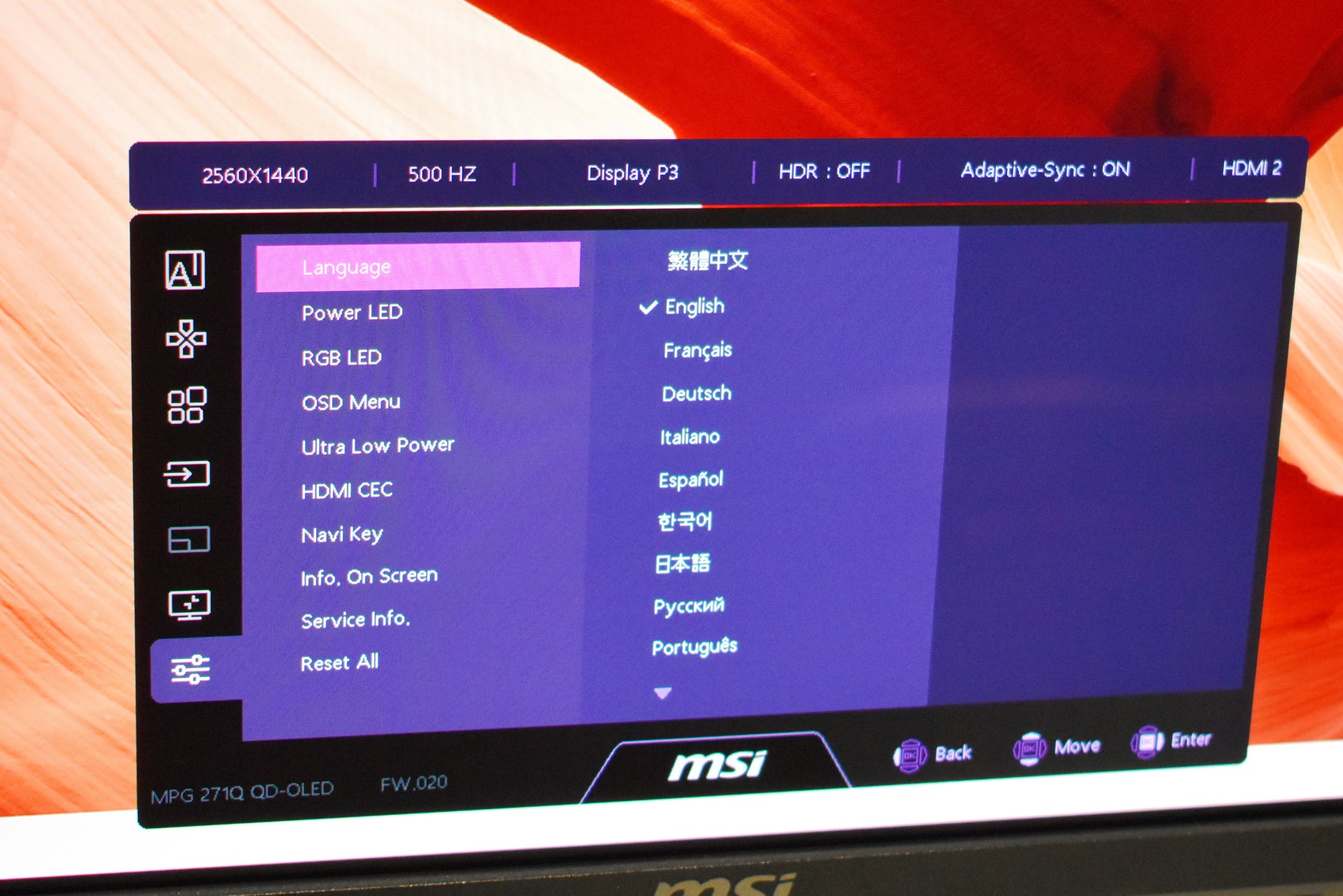
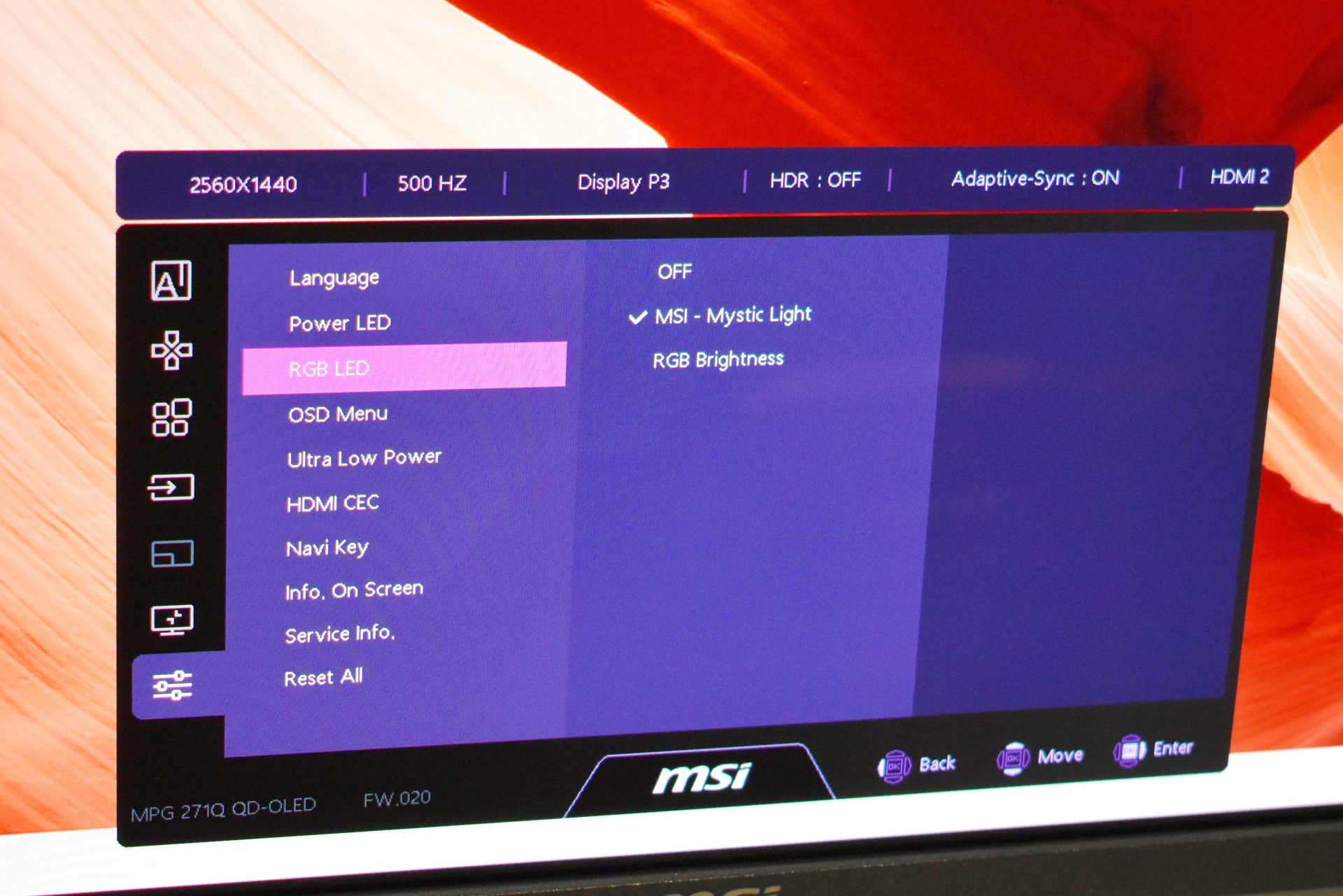
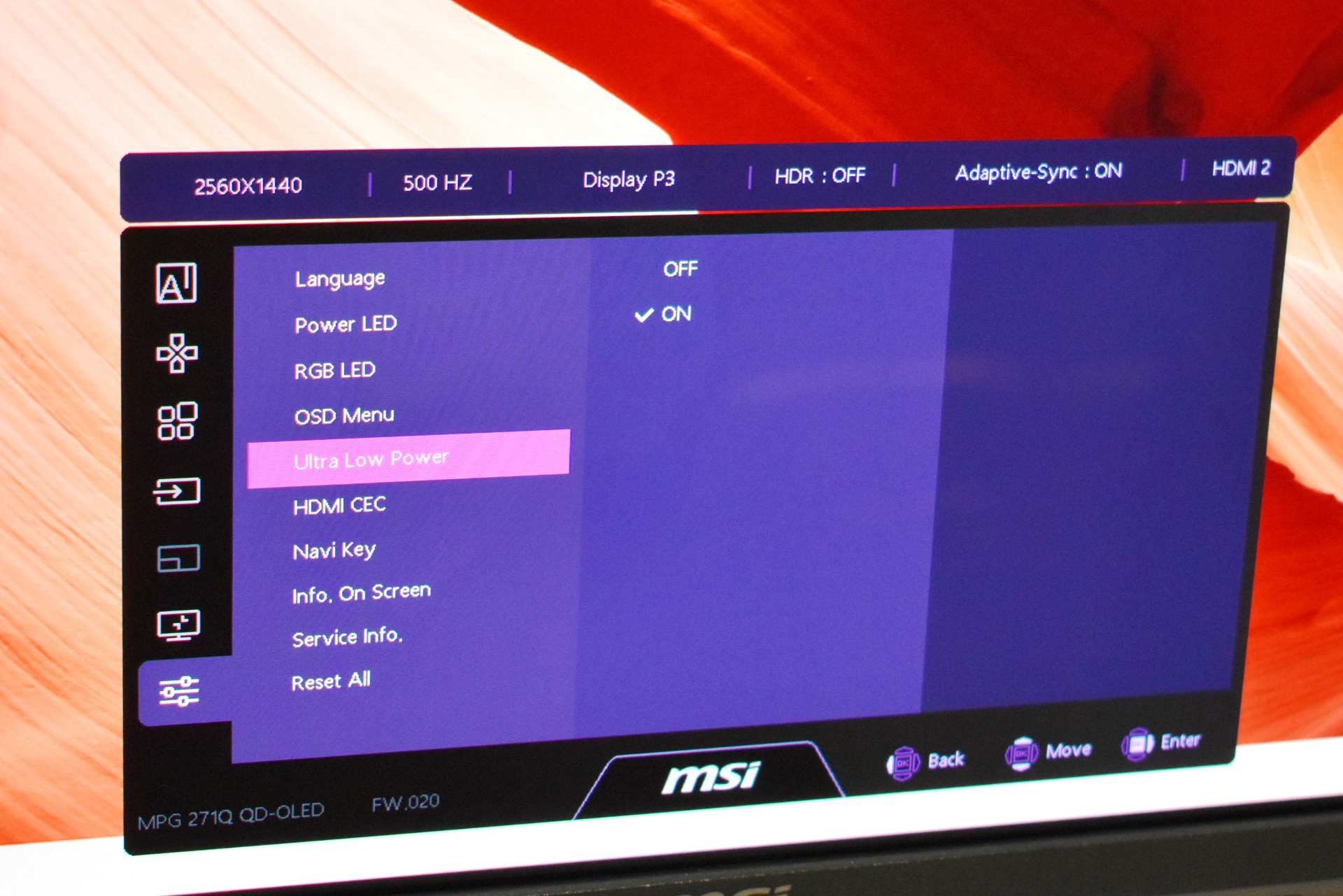
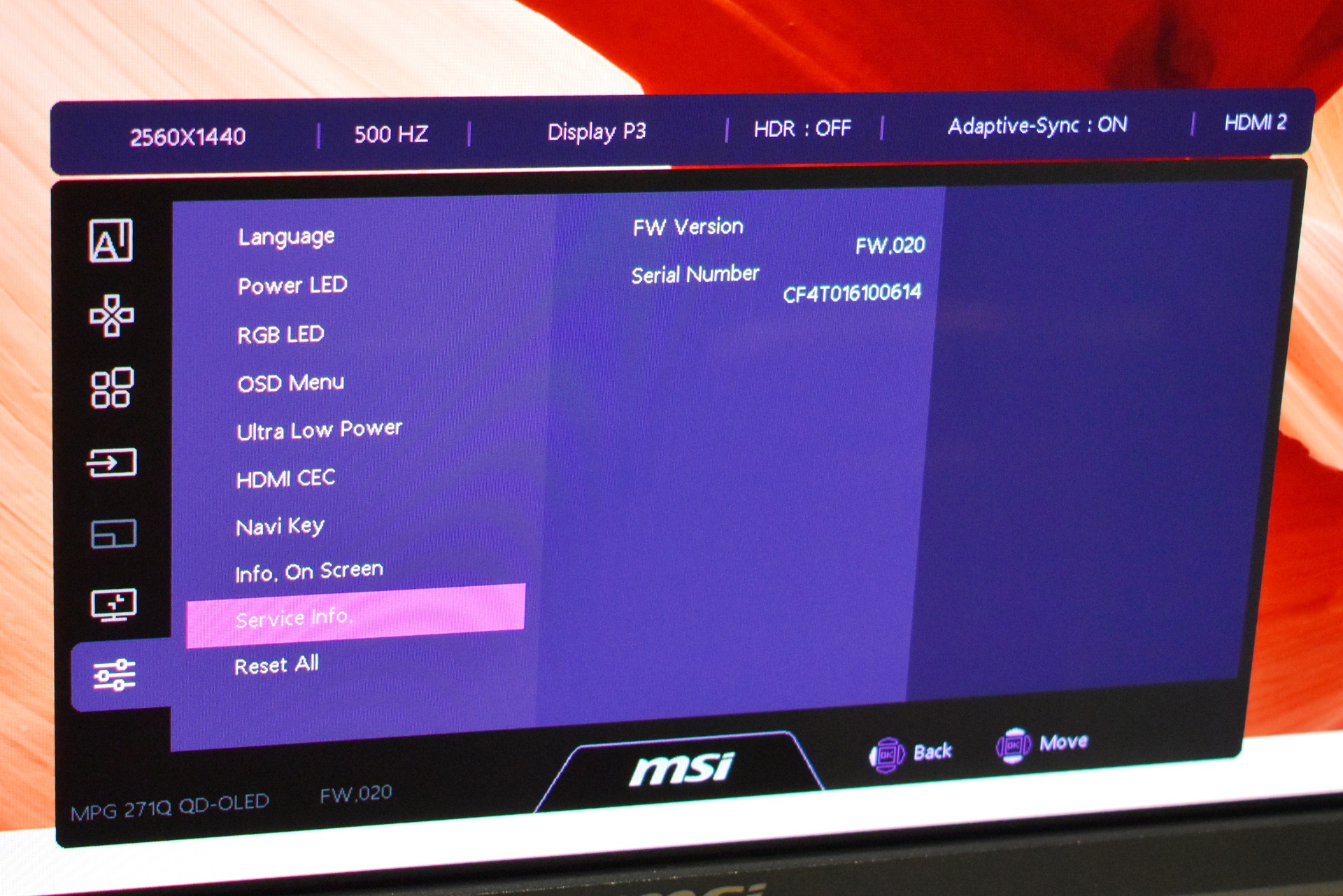
This section contains all general monitor settings. The user can change the OSD language, toggle the power LED, adjust RGB LED behavior, configure OSD rotation and transparency, enable ultra‑low‑power mode, toggle HDMI‑CEC, customize Navi Key shortcuts, show on‑screen info, view service details like firmware and serial number, and reset all settings to default.